
Notes & tasks
Every trámite has a speech bubble in its header: Notes & tasks. It opens a panel on the right with two tabs, one for notes about that trámite and one for the tasks still to do on it. Clients, invoices, estimates and packages have the same speech bubble.
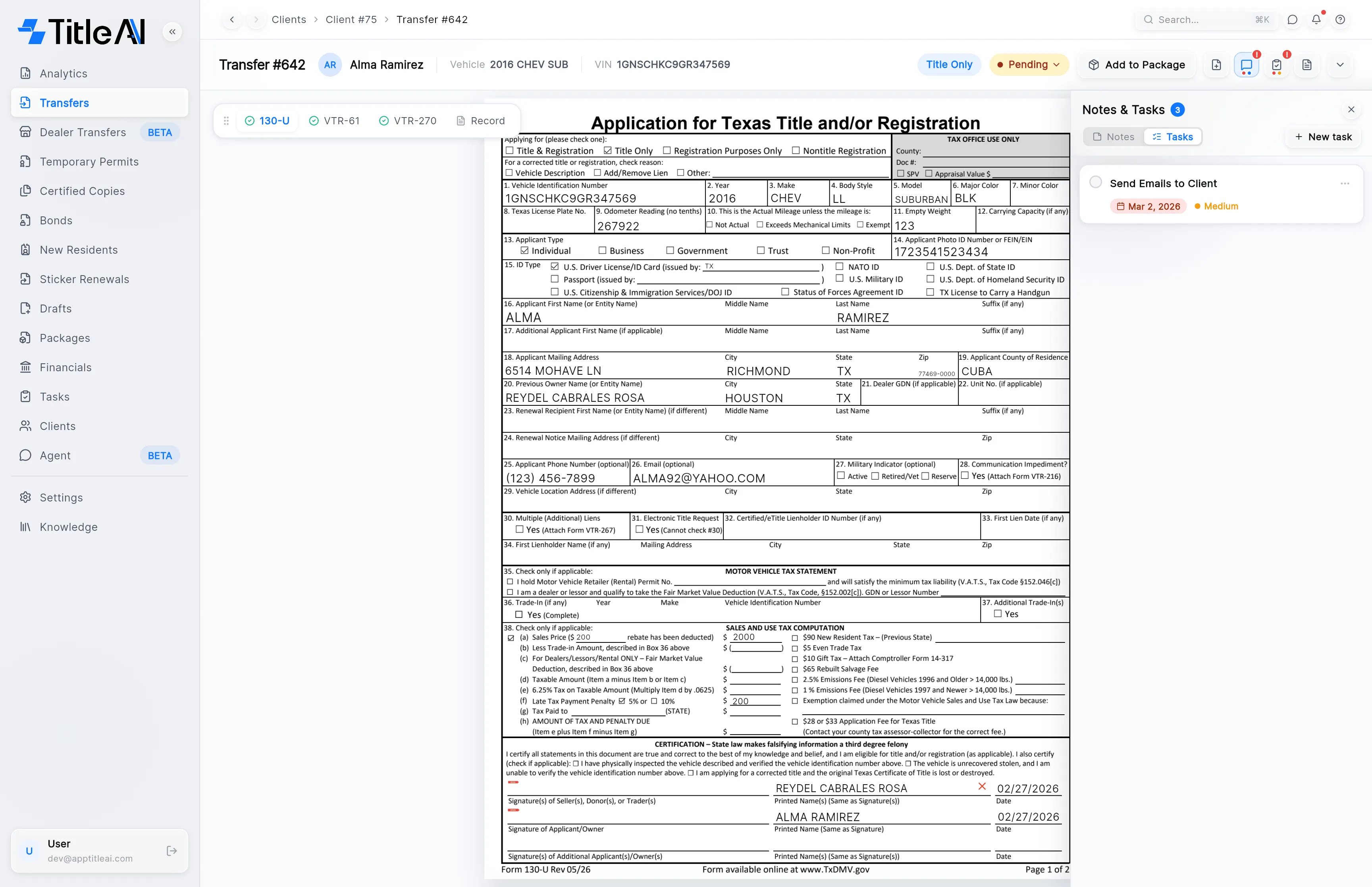
The speech bubble and its badges
Section titled “The speech bubble and its badges”
| On screen | What it means |
|---|---|
| ”!” mark | Something is waiting in the panel. It is red when there are open tasks, blue when there are only notes. |
| Red dot under the icon | The trámite has open tasks. |
| Blue dot under the icon | The trámite has notes. |
| Number beside Notes & Tasks | In the panel’s title: how many notes and tasks it holds altogether. |
| Speech bubble and clipboard on a row | In the lists (Transfers, a client’s tabs…), how many notes and open tasks that row’s trámite has. |

Click the speech bubble again, or the × in the panel, to close it.
Leave a note
Section titled “Leave a note”-
Open the trámite and click the speech bubble. The panel opens on Notes.
-
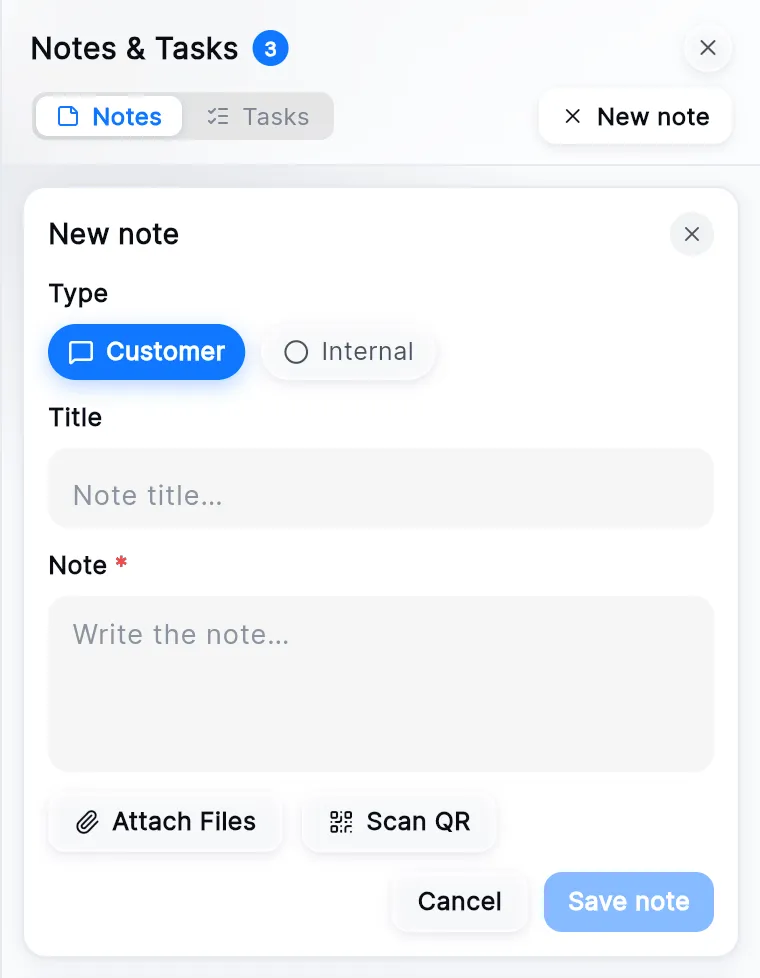
Press New note.
-
Choose the Type: Customer or Internal. The note card shows it as a label, so the office can tell them apart.
-
Write the Note. The Title is optional.
-
To attach a file, press Attach Files, or Scan QR to send a photo from your phone.
-
Press Save note. The note shows who wrote it and when.
Add a task to a trámite
Section titled “Add a task to a trámite”-
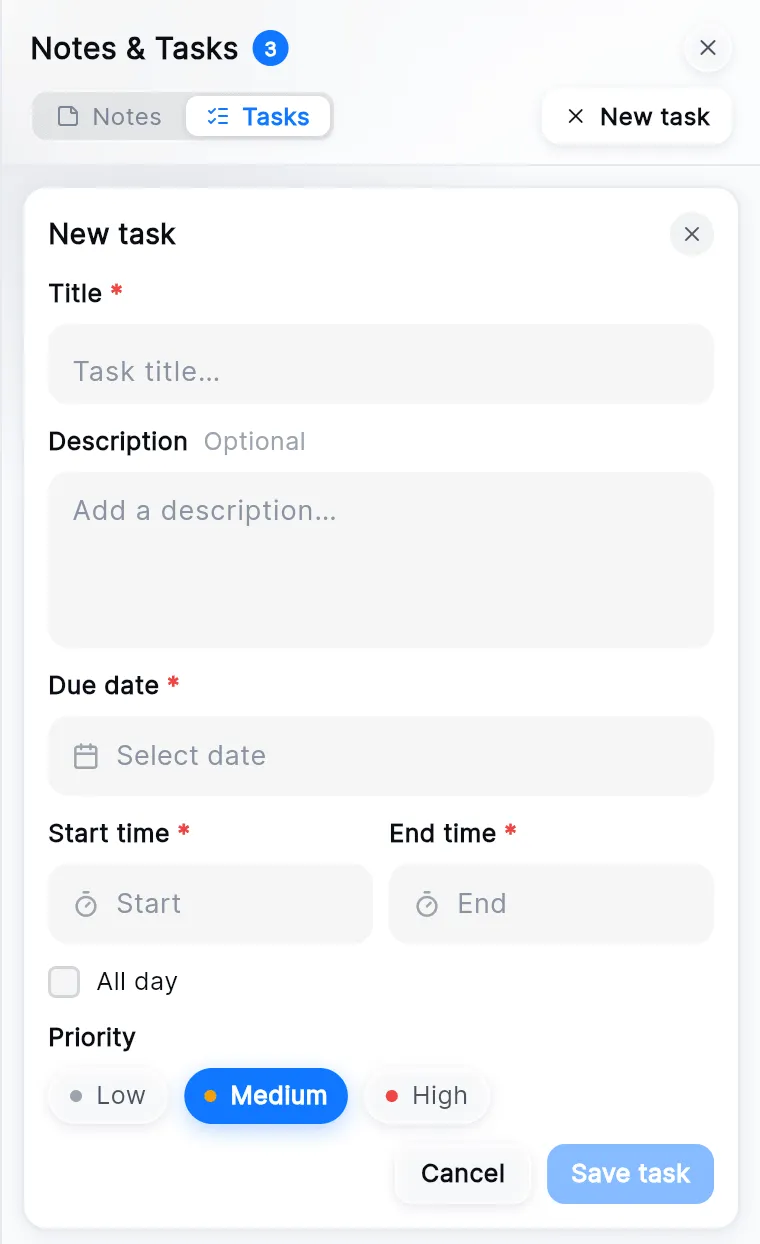
In the panel, click the Tasks tab and press New task.
-
Give it a Title and a Due date, a Start time and End time or All day, and the Priority.
-
Press Save task. It is linked to this trámite on its own; there is nothing to pick.
Finish, change or delete a task
Section titled “Finish, change or delete a task”Click the round tick box beside a task to mark it done; click it again to reopen it. The ⋯ on the card has Edit and Delete.
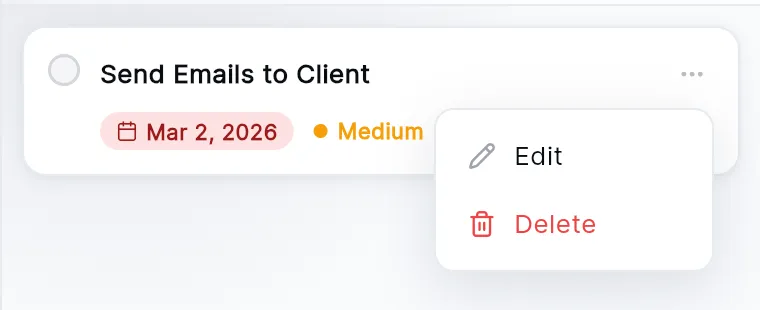
A red date means the task is late; an amber one, that it is due today.
These tasks and the Tasks section
Section titled “These tasks and the Tasks section”A task added here is the same task you see in Tasks in the sidebar, with this trámite under Linked to. Finishing it in either place finishes it in both. Tasks gathers every task in the office; this panel shows only the ones for the trámite you have open.