Settings
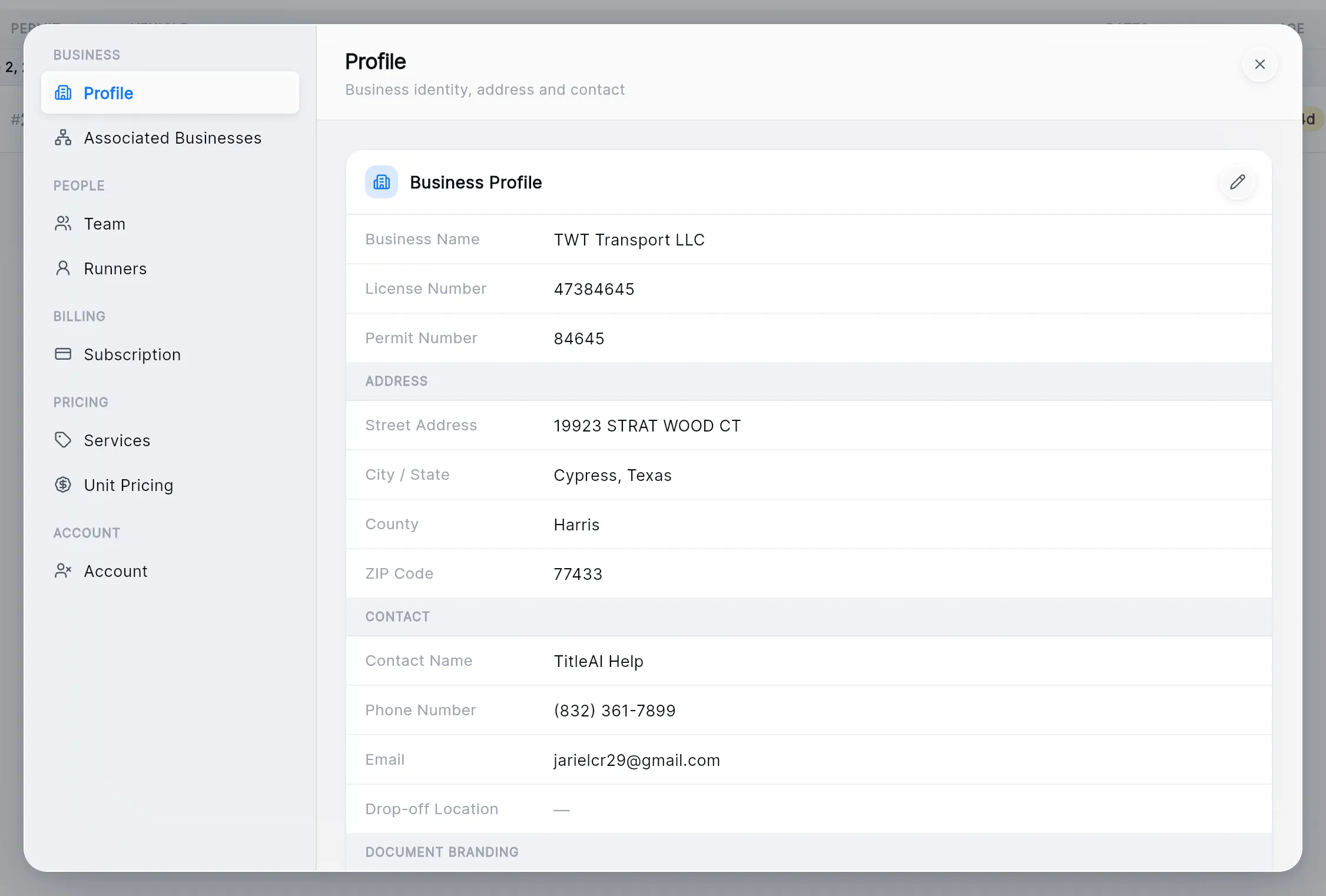
Settings, at the bottom of the sidebar, opens a window over the screen you are on. It holds what the rest of the app works from: the business details printed on your documents, who can sign in, who delivers your packages, your plan, and your prices. The sidebar entry only shows for admins.
The sections
Section titled “The sections”| Section | What it holds |
|---|---|
| Profile | The business name, license and permit numbers, address, contact, and the header and footers printed on estimates and invoices. |
| Associated Businesses | Other businesses you run under this account, with their owners and runners. |
| Team | The people who can sign in to this workspace, and invitations still pending. |
| Runners | The licensed runners who deliver packages to the county. |
| Subscription | Your plan, what you have used, and AI credits. |
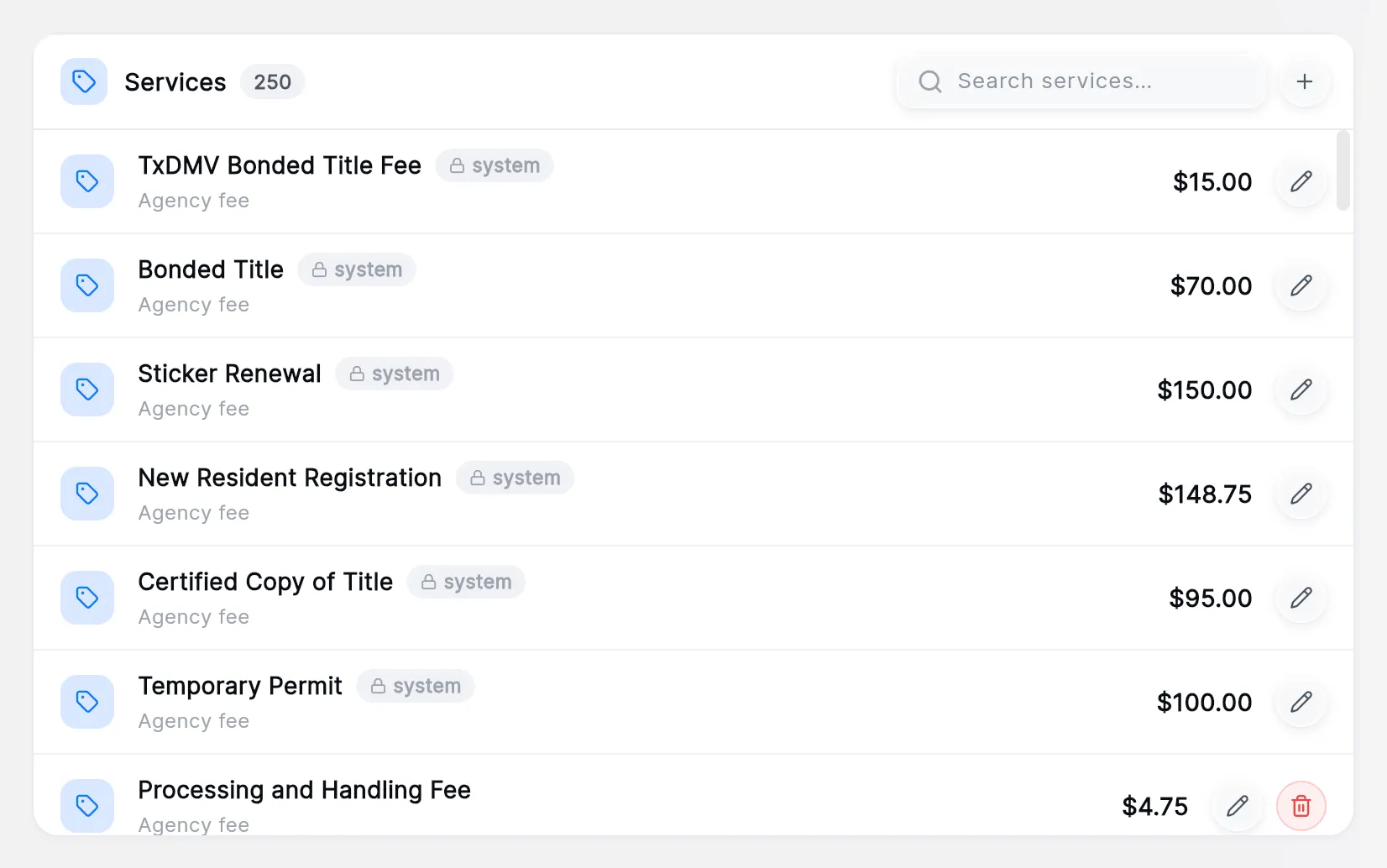
| Services | Your agency fees and government fees, as they appear on invoices and estimates. |
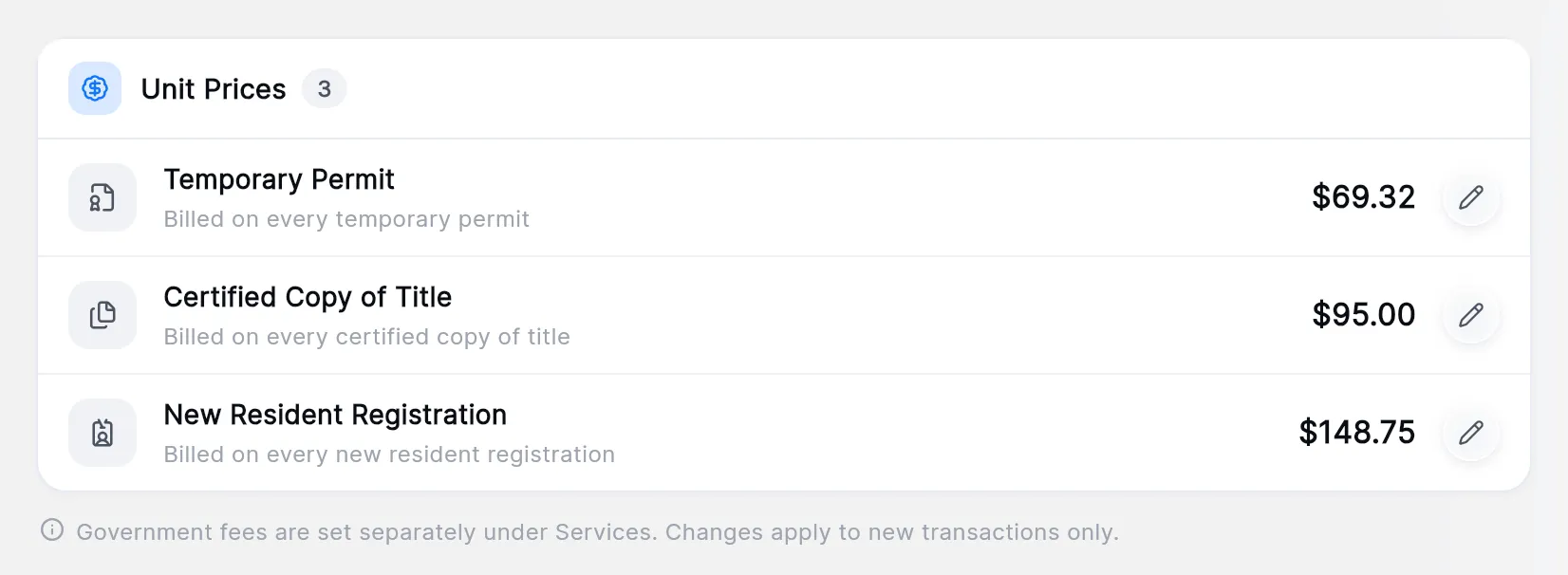
| Unit Pricing | The flat price billed on each temporary permit, certified copy and new resident registration. |
| Account | Deleting your own account. |
The × at the top right closes the window and leaves you where you were.
Change your business details
Section titled “Change your business details”On Profile, press the pencil on the Business Profile card, change what you need and press Save. Document Header, Estimate Footer and Invoice Footer are the lines printed on your estimates and invoices.
Invite someone to the team
Section titled “Invite someone to the team”-
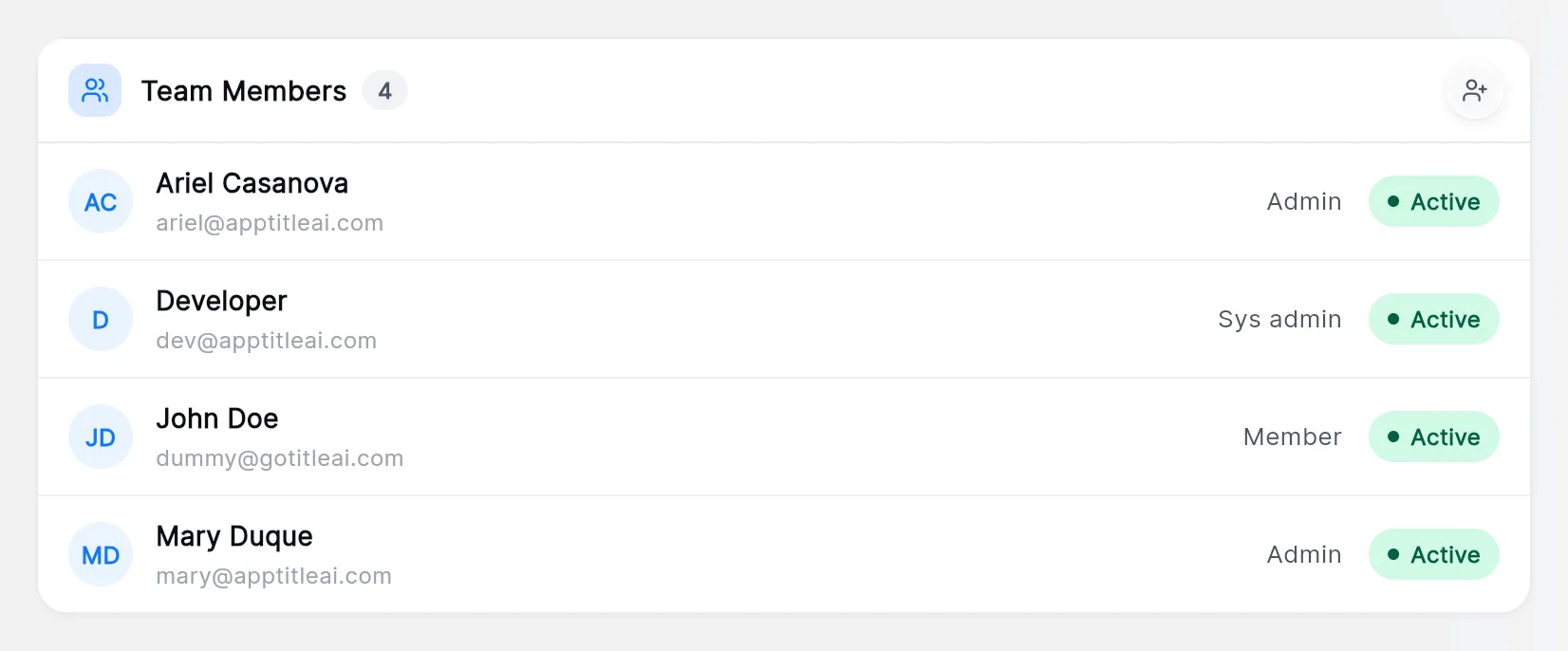
Open Team. The card lists everyone with access, their role and whether they are Active.
-
Press the person-plus icon at the top right of the card (Invite members).
-
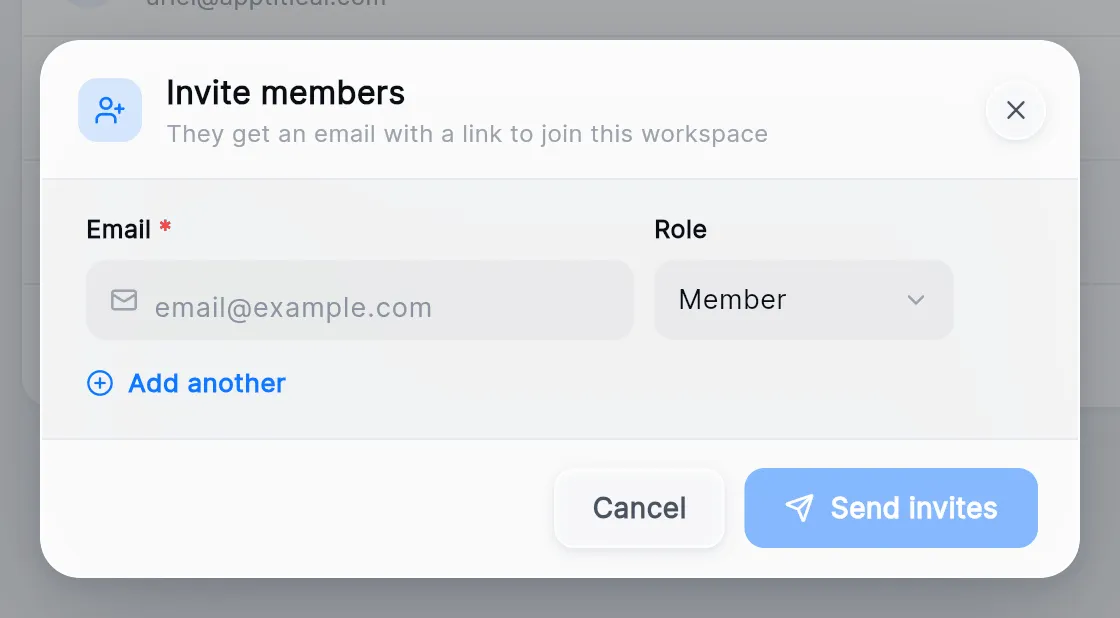
Type their Email and choose the Role: Member or Admin. Add another adds a row for one more person.
-
Press Send invites. Each person gets an email with a link to join, and appears under Pending invitations until they do.
To withdraw an invitation, press the × beside it and confirm Cancel invitation. Roles can’t be changed and members can’t be removed from here.
Add a runner
Section titled “Add a runner”Open Runners and press the person-plus icon. Fill in First Name, Last Name, the Permit Number (a runner needs one before they can take a package) and the License Expiration, then save. The pencil edits a runner; the red icon deactivates one, which takes them out of the runner lists.

Add a business you work for
Section titled “Add a business you work for”If you also run packages for other businesses, add them under Associated Businesses with the +. Each business has its own owners and runners: press its people icon to add them.

The businesses you add here appear under Business when you create a package. See Packages.
Set your prices
Section titled “Set your prices”Services lists every fee that can go on an invoice or estimate, with its price. Search for one, press its pencil to change the price, or press + to add a new one as an Agency fee or a Government fee. Services tagged system come with TitleAI: you can change their price but not delete them.
Unit Pricing holds the flat price billed on every temporary permit, certified copy of title and new resident registration. Press the pencil on a row to change it. A new price only applies to trámites created afterwards.
Check your plan and AI credits
Section titled “Check your plan and AI credits”Subscription shows your plan, how many transfers and permits you have used, and the AI credits the assistant has spent. Manage Subscription opens the billing page.
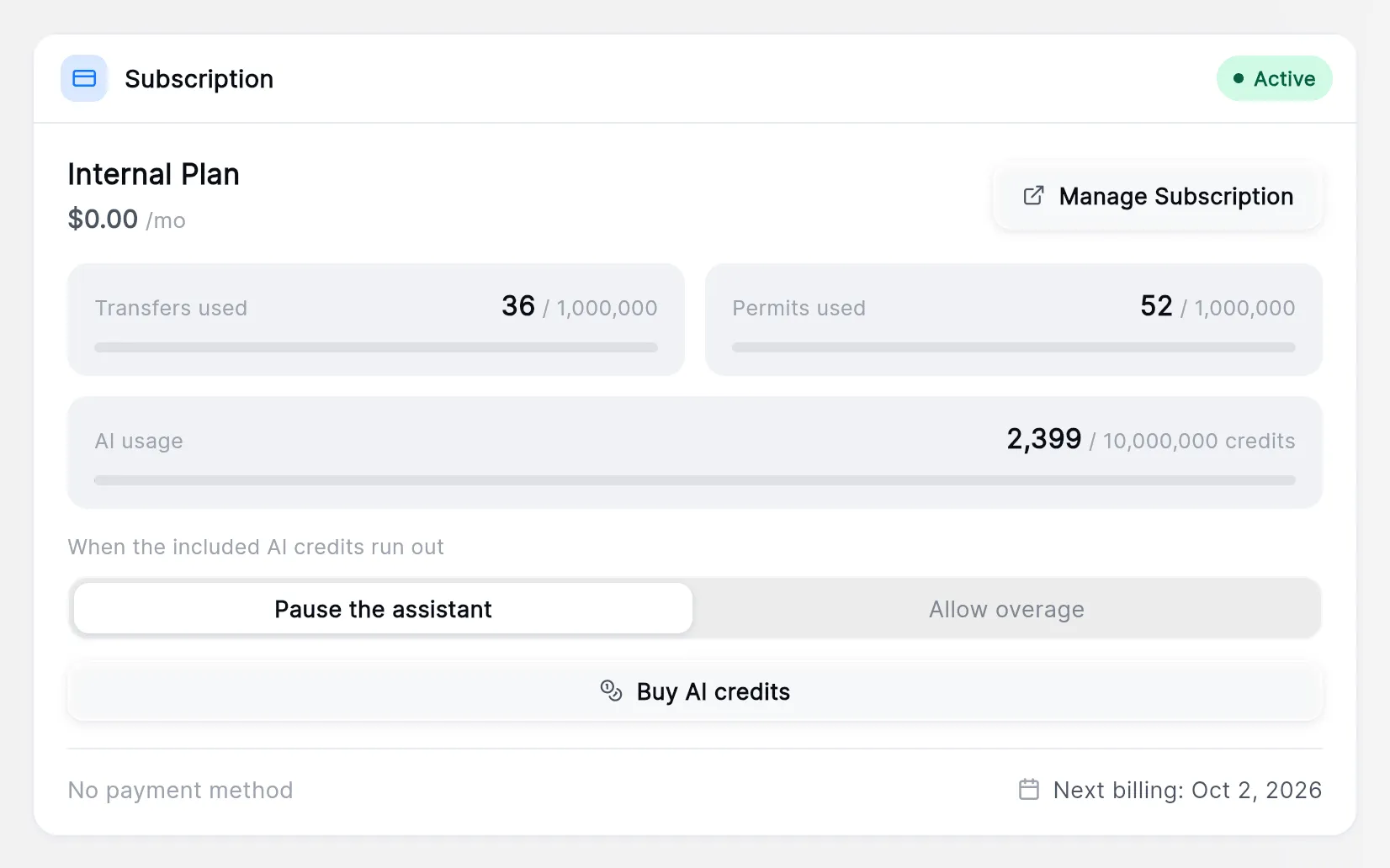
Under When the included AI credits run out, choose Pause the assistant or Allow overage. Buy AI credits tops them up.
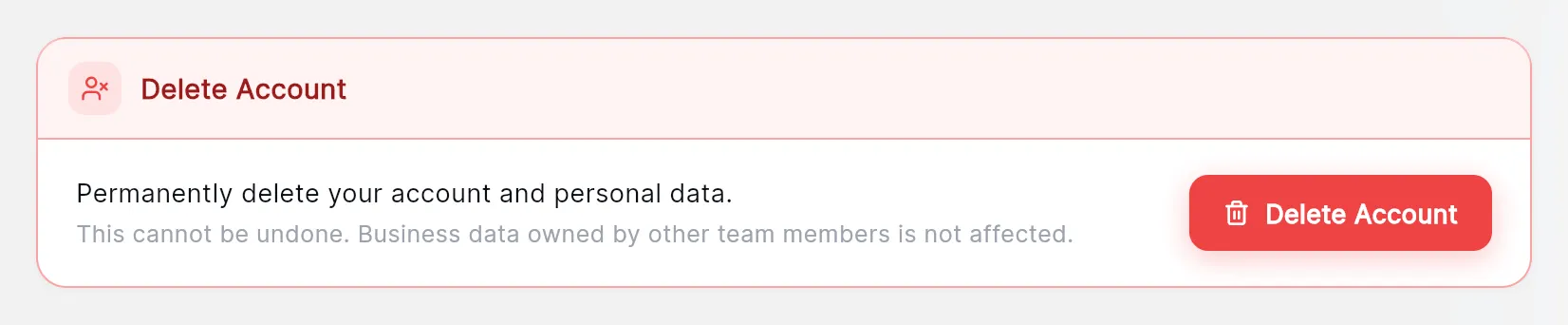
Delete your account
Section titled “Delete your account”On Account, Delete Account asks you to type DELETE to confirm. It removes your own account and personal data; the business’s data owned by other team members stays. An owner with team members can’t delete their account.