
Temporary Permits
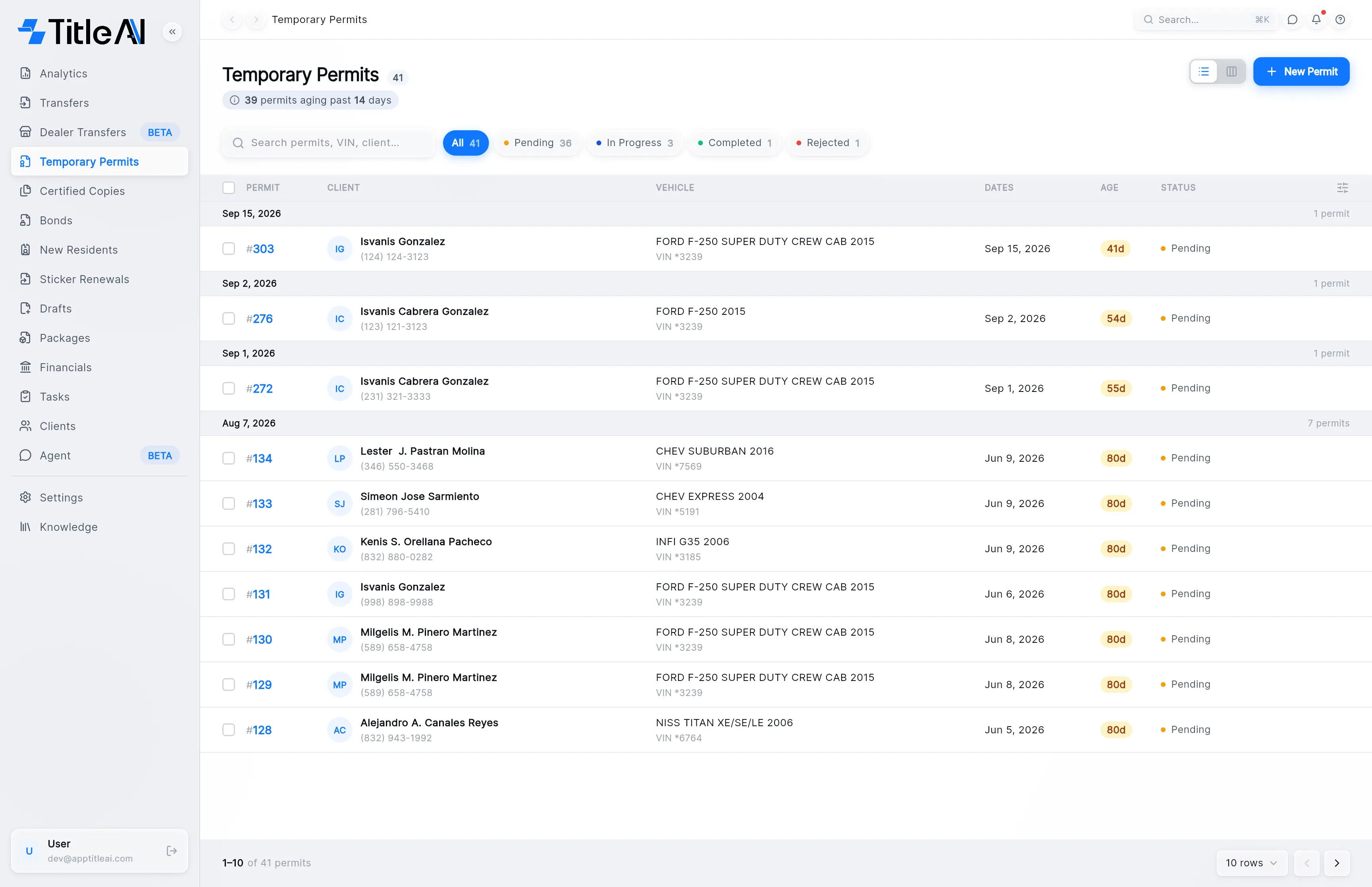
Temporary Permits in the sidebar holds every temporary permit the office has prepared. Each permit is two forms, the VTR-66 and the VTR-271, which TitleAI fills from the customer’s documents. The list shows what status each one is in and how long it has been open.
The permits list
Section titled “The permits list”
- Search box: matches the permit number, the VIN and the client’s name.
- Status chips (All, Pending, In Progress, Completed, Rejected): show only the permits in that status. Each carries a count, and you can turn on more than one at once.
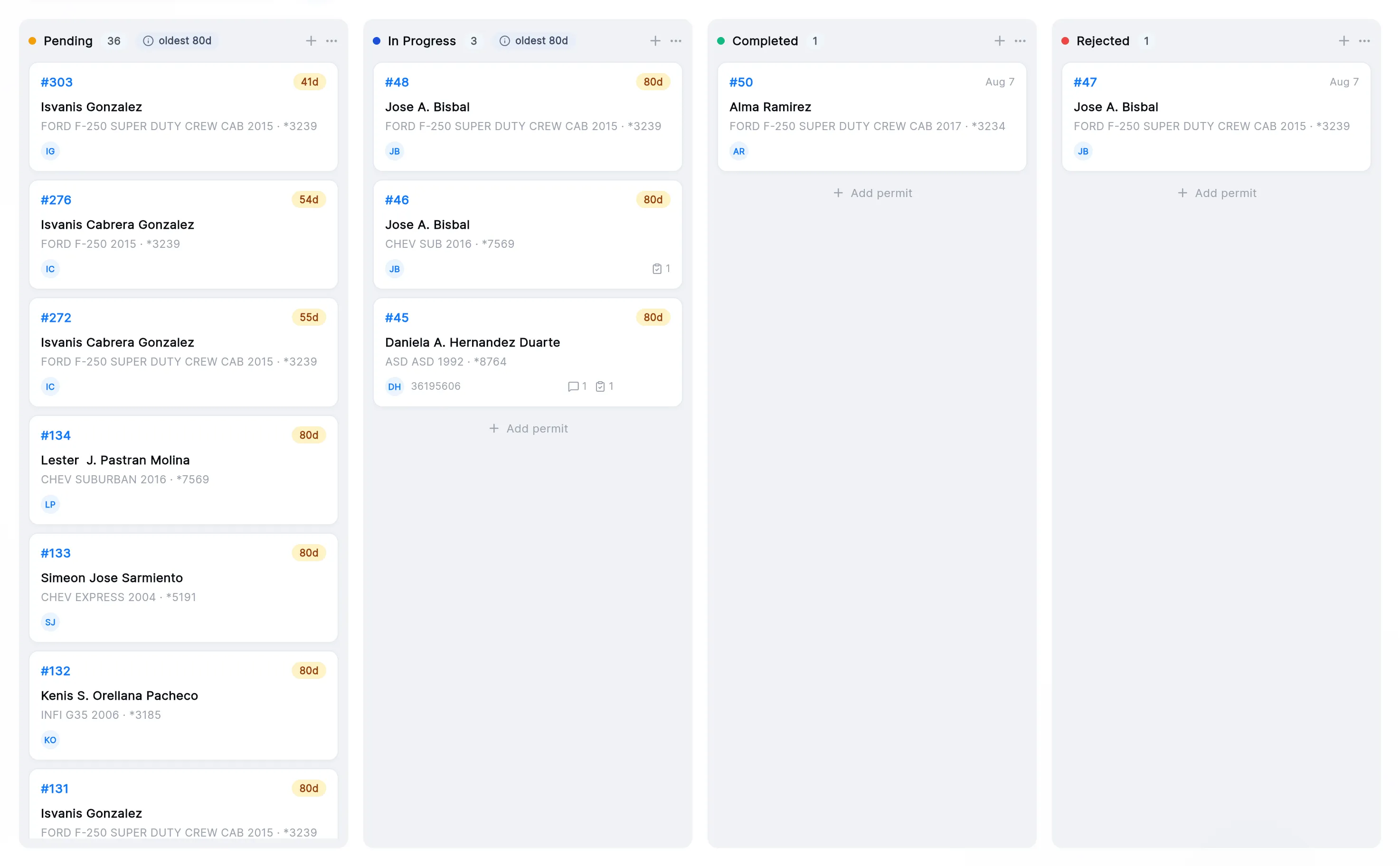
- List / board switch: the two icons left of New Permit. The board shows one column per status, and you move a permit by dragging its card.
- Column settings: the icon at the right end of the table header. Choose which columns you see and in what order.
What the chips and columns mean
Section titled “What the chips and columns mean”| On screen | What it means |
|---|---|
| Pending | Prepared, not moved on yet. Every permit starts here. Amber. |
| In Progress | Blue. |
| Completed | Green. |
| Rejected | Red. |
| Vehicle | Make, model and year from the VTR-66, with the last four of the VIN underneath. “N/A” means the VTR-66 hasn’t been read yet. |
| Dates | The permit’s start date. Once the date issued is filled in, it shows underneath as “Issued …”. |
| Age | Whole days since the permit was created. On the board, a Completed or Rejected card shows its date instead. |
| aging past 14 days | The line under the heading. How many permits are older than 14 days. |
| stalled over 90 days | Replaces the aging line once anything is over 90 days old. |
| Speech bubble and clipboard | On the right of a row: how many notes and how many open tasks the permit has. |
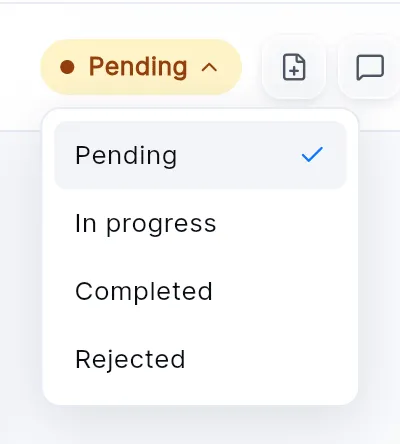
The status is your own label for the permit: TitleAI never changes it. Set it from the status pill on the permit, or by dragging its card on the board.
Create a permit
Section titled “Create a permit”The wizard has two steps: Upload Documents and Review & Finish. Nothing is created until you press Submit.
-
On the Temporary Permits list, press New Permit at the top right. The wizard opens on Upload Documents.
-
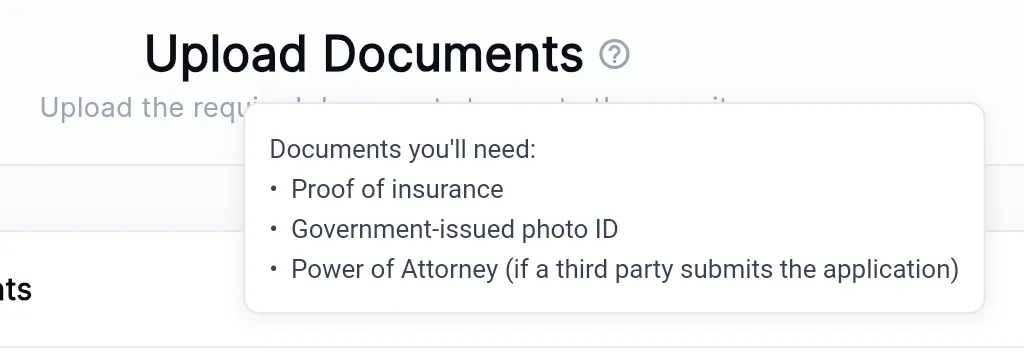
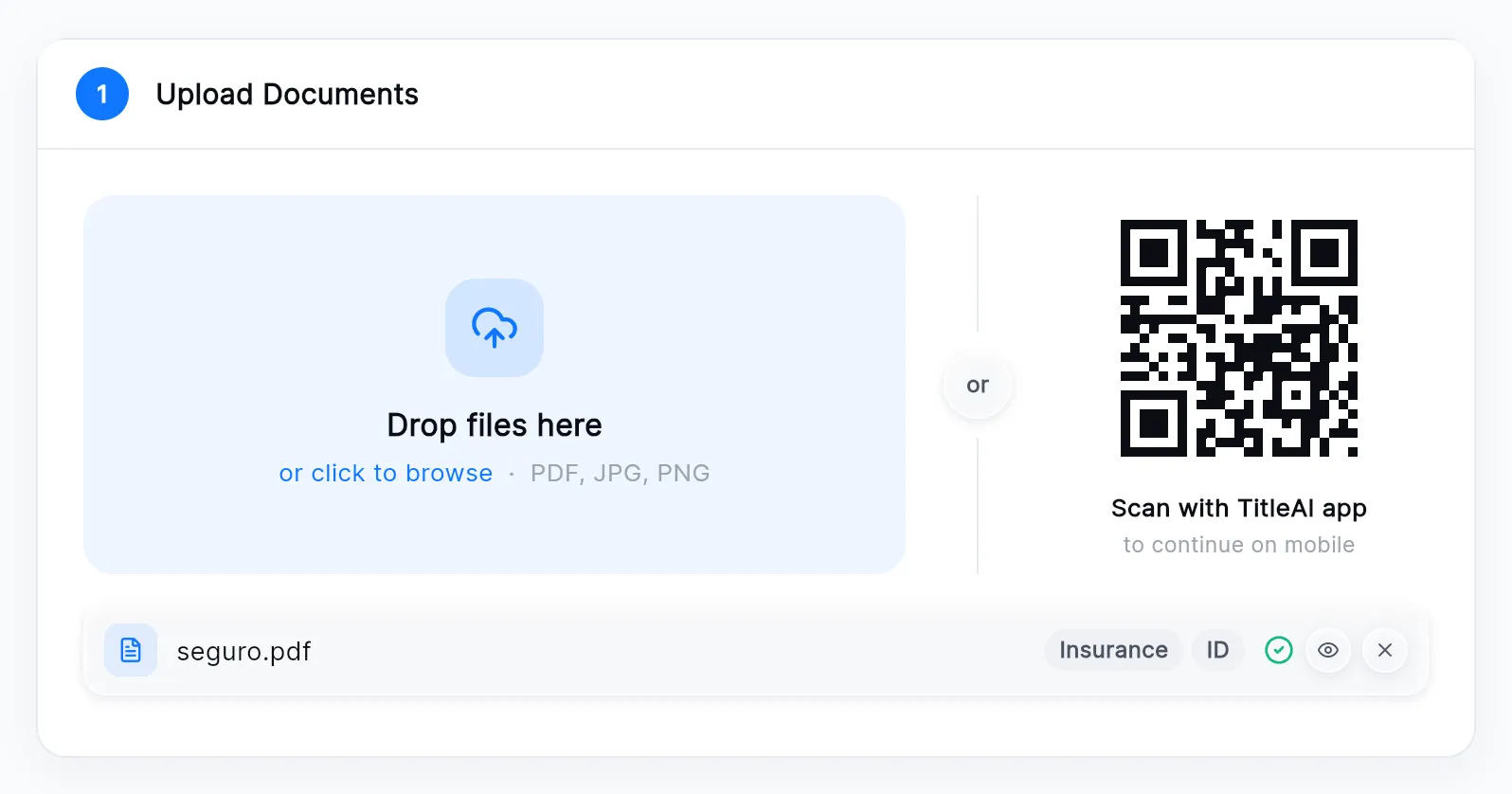
Drop the customer’s papers onto the box, or click it to browse. It takes PDF, JPG and PNG. The ? next to the title lists the documents you’ll usually need.
No scanner? Scan the QR code with your phone and photograph the papers there. They arrive on this screen.
-
Each file shows up under the box with what TitleAI recognised in it. The eye opens it, and the × removes it.
-
Press Continue. TitleAI reads the documents and fills both forms. With nothing uploaded the button reads Enter manually and you type the forms yourself.
-
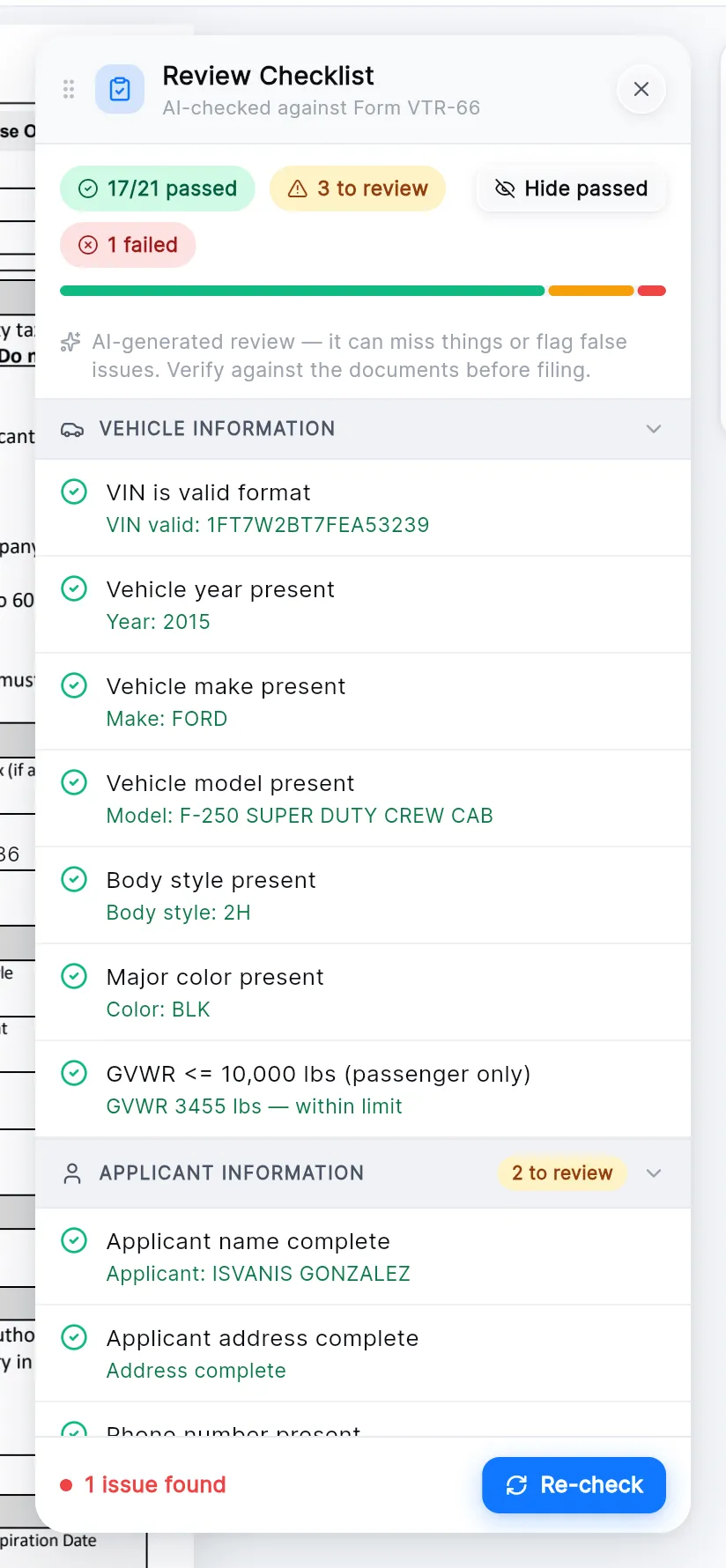
On Review & Finish, check the VTR-66 against the papers in your hand. The Review Checklist opens on its own and lists what is missing or wrong; Go to field takes you to each one.
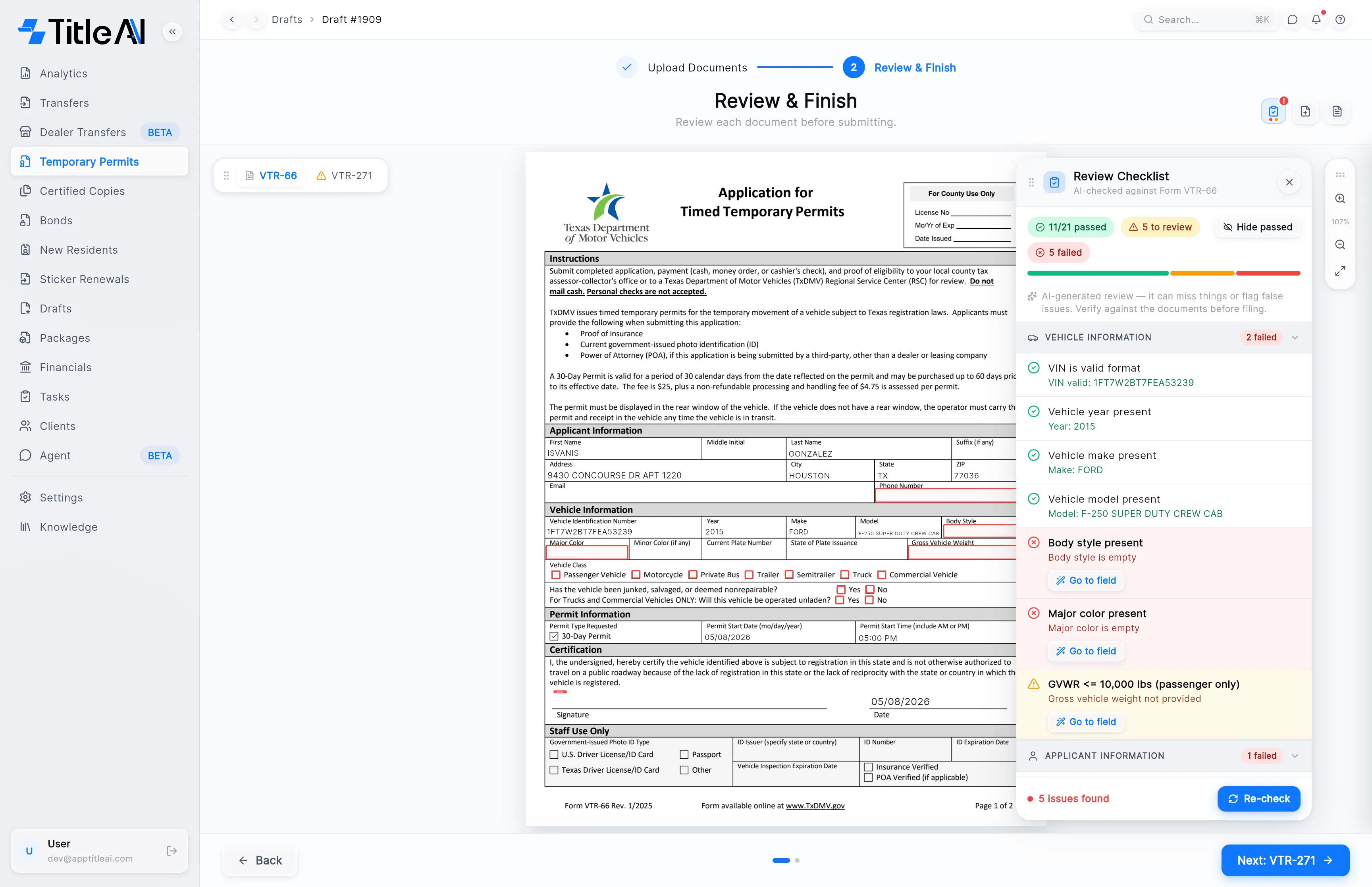
The icons at the top right toggle the checklist, add a supporting document, and show the uploaded documents next to the form.
-
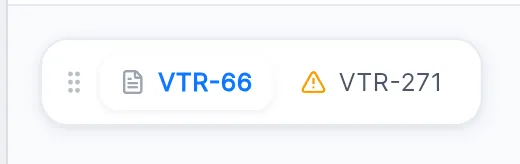
Press Next: VTR-271 and check the second form. A tab with an amber triangle hasn’t been opened yet.
-
Press Submit. It stays off until you have opened both tabs and both forms are valid. The permit opens once it is created.

Look up one customer’s permit
Section titled “Look up one customer’s permit”-
Type into the search box. The permit number, the VIN or the client’s name all work. If a status chip is on, turn on All first so the search covers everything.
-
Click the row to open the permit.
The permit screen
Section titled “The permit screen”Opening a permit shows its two forms down the left tabs, the selected form in the middle, and its tools across the top.
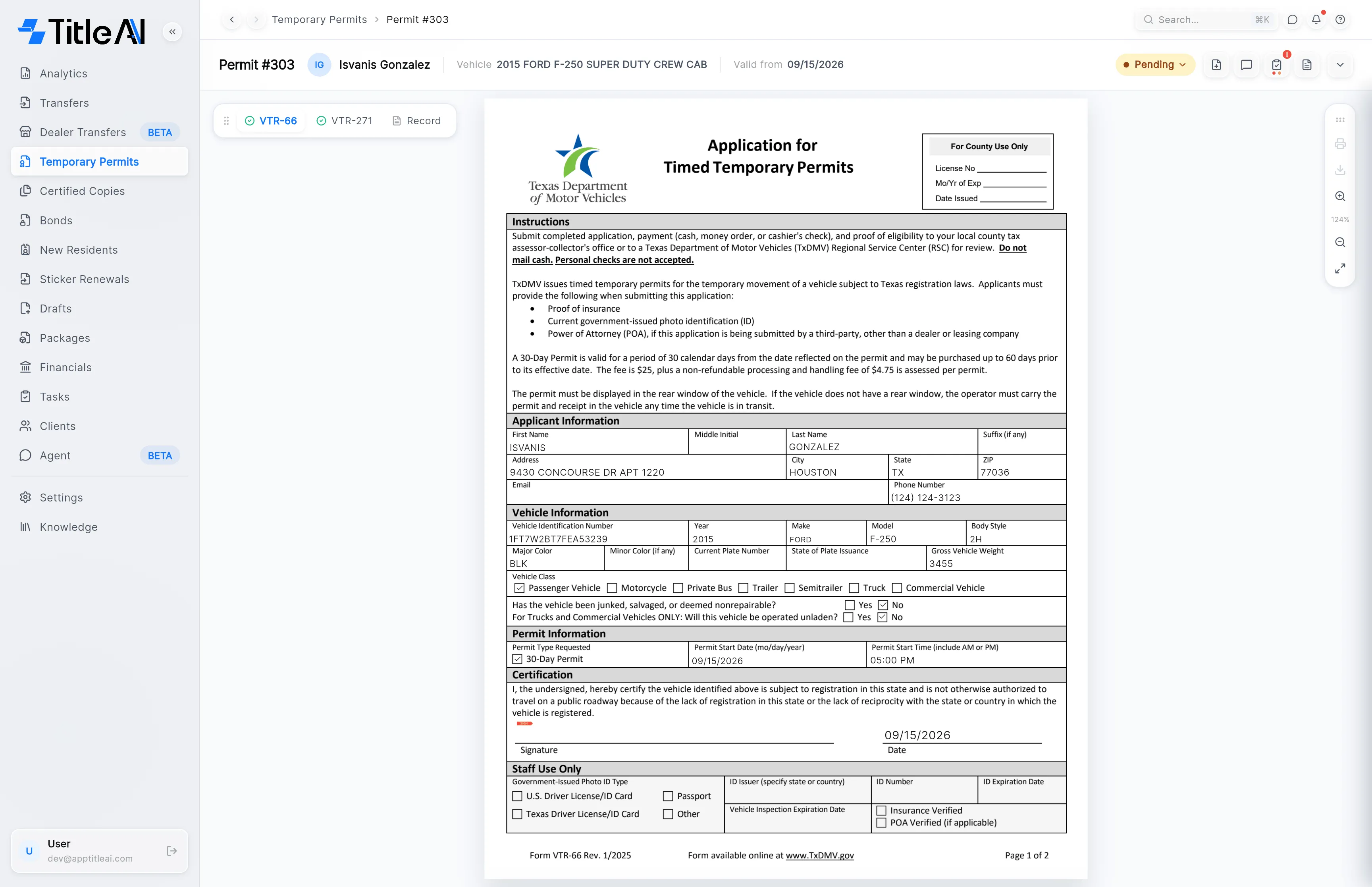


| Control | What it does |
|---|---|
| Form tabs | VTR-66 and VTR-271. A green check means the form is valid. Record appears once the combined PDF exists. |
| Valid from | The permit’s start date, from the VTR-66. |
| Status pill | Shows Pending, In Progress, Completed or Rejected. Click it to change the status. |
| File-plus icon | Add supporting document: attach another file. See Documents. |
| Speech bubble | Notes & tasks for this permit. |
| Clipboard | Review checklist. The red badge counts problems. |
| File icon | Show uploaded documents: the papers the forms were read from, next to the form. |
| Chevron | Shows the client, vehicle and permit details, and the quick links. |
| Tool rail | On the right of the form: print, download, zoom and fit. |
Change the status
Section titled “Change the status”Click the status pill and pick the new status.
See what still fails
Section titled “See what still fails”Click the clipboard. The checklist reads the forms against the documents and groups what it finds. Go to field jumps to the field it means, switching tabs if it is on the other form, and Re-check runs it again after you fix something. Hide passed leaves only the problems.
Go to the client or the invoice
Section titled “Go to the client or the invoice”Click the chevron at the right of the header. Permit Info shows the status, the license number, the date issued and the permit start, and Quick Links has View Client Profile and View Invoice.
