
Agent
Agent in the sidebar is a chat with TitleAI. Ask it about a transfer, a fee, a form or a client, or drop documents on it and ask what they’re for. It answers in text and with cards you can act on. This page covers how the chat works. It doesn’t cover what the agent knows; ask it that yourself.
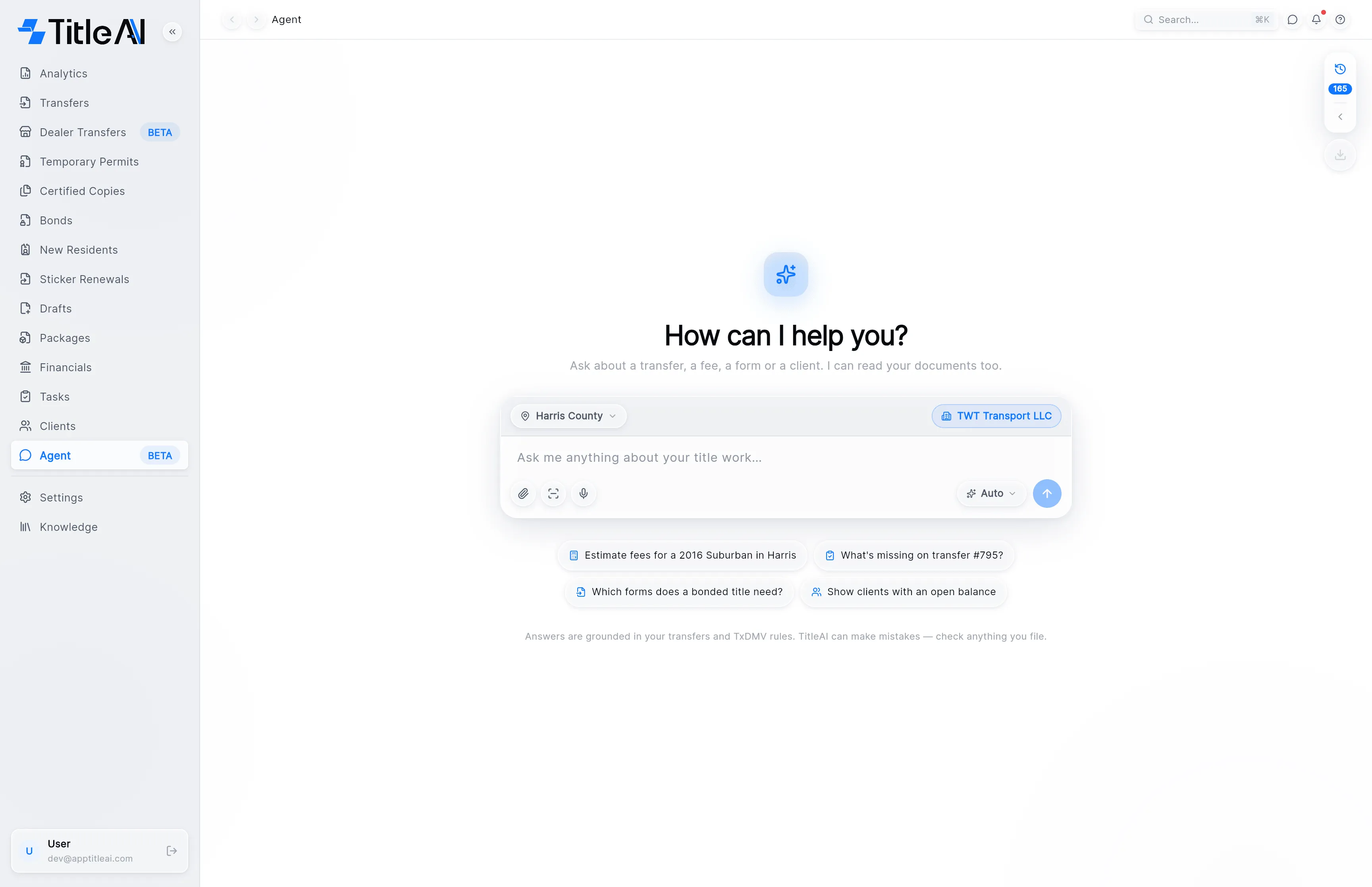
The four pills under the composer are starter questions. Click one to send it as it reads.
The composer
Section titled “The composer”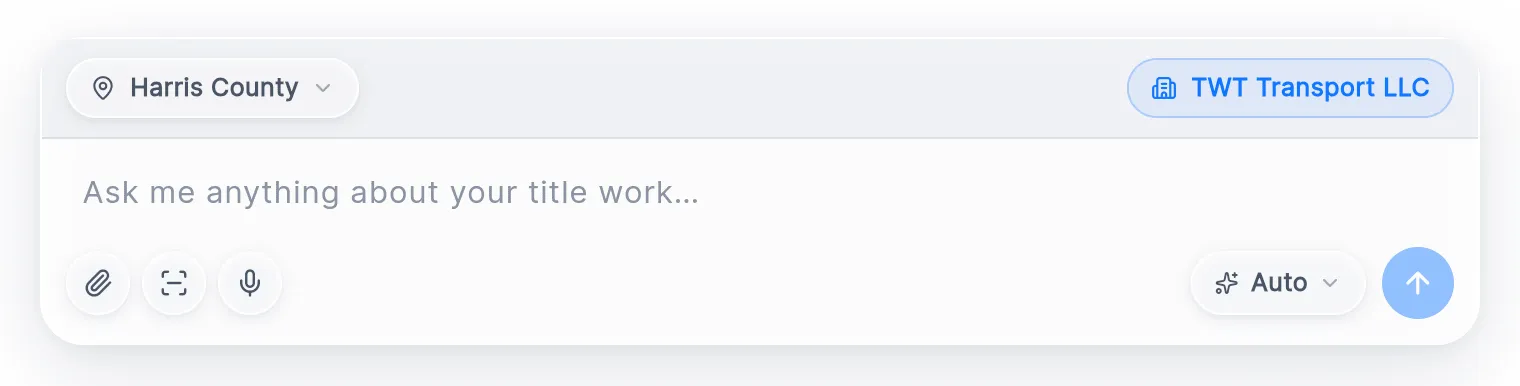
- Paperclip (Attach a document): pick files from your computer.
- Scan (Scan a document with your phone): shows a QR code. Scan it with your phone and photograph the papers there.
- Microphone (Dictate): talk instead of typing. The field reads Listening… and fills as you speak. Press the red button to stop, then fix the text before you send it.
- Auto / Fast: which model answers. Auto picks for you. Fast answers sooner on simple questions.
- Send: the arrow. Enter sends too, and Shift+Enter starts a new line. While the agent is answering, the arrow becomes Stop.
What the chips and notices mean
Section titled “What the chips and notices mean”| On screen | What it means |
|---|---|
| Harris County | The county the agent works with. |
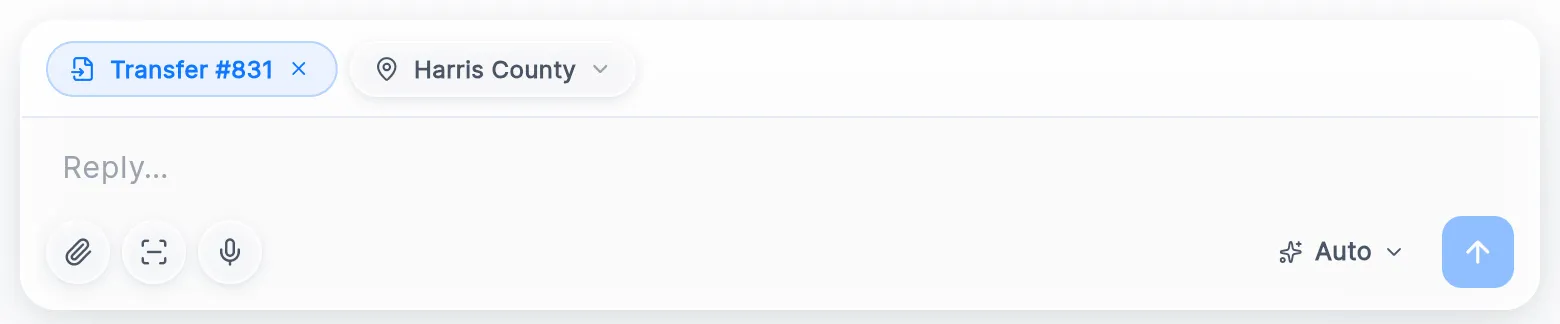
| Transfer #831, a client’s name | The record this conversation is about. Click the chip to pick another one, or × to remove it. |
| Reading your documents… | Your files are still being read, and the answer waits for them. The button where Send was (Answer now) answers without them. |
| AI credits line | Shows up above the composer once you have used most of this period’s AI credits. When they run out, sending stops until you Buy credits. Past conversations stay readable. |
| TitleAI can make mistakes | The line under the composer. Check anything you file against the papers. |
Ask about one record
Section titled “Ask about one record”You don’t need to set anything up first. Name the record in your question (“What’s missing on transfer #795?”) and the agent looks it up.
When a conversation is about one transfer or client, its chip sits in the composer next to the county. It stays there when you reopen the conversation from the history.
-
Click the Transfer or client chip to choose a different record from the list.
-
Click × on the chip to stop answering about that record.
Ask what a set of documents is for
Section titled “Ask what a set of documents is for”-
Press the paperclip and choose the files, or press the scan button and use your phone. Each file shows as a chip above the field. × removes one, and the retry arrow sends a failed upload again.
-
Write your question, or leave the field empty, and press Send.
-
Once the documents are read, the composer offers Propose tramits. Press it and the agent says which trámites these papers allow, one card each.
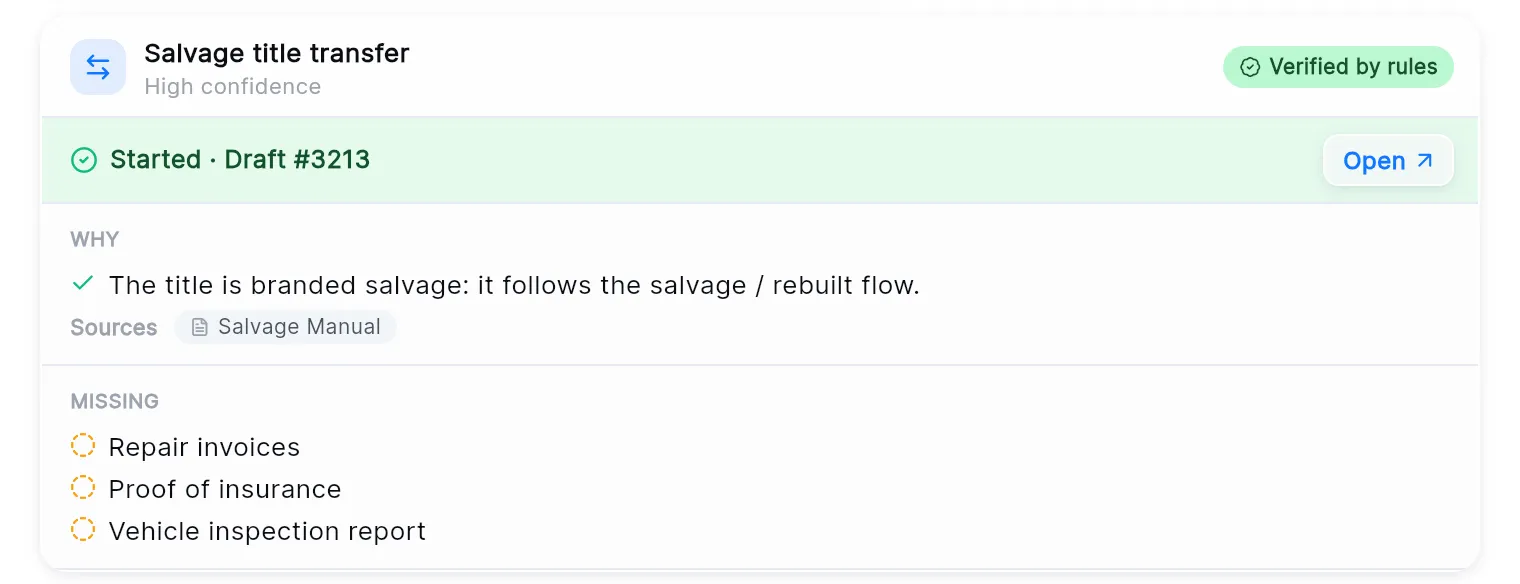
Each proposal names the trámite, how sure the agent is (High, Medium or Low confidence), whether the office rules confirm it (Verified by rules), why it fits and which documents are still missing. The button under it starts that trámite as a draft (Start transfer, Start bond, Start permit and so on). Once started, it reads Started and Open takes you to the draft.
Each document you sent also gets its own card with what was read from it.
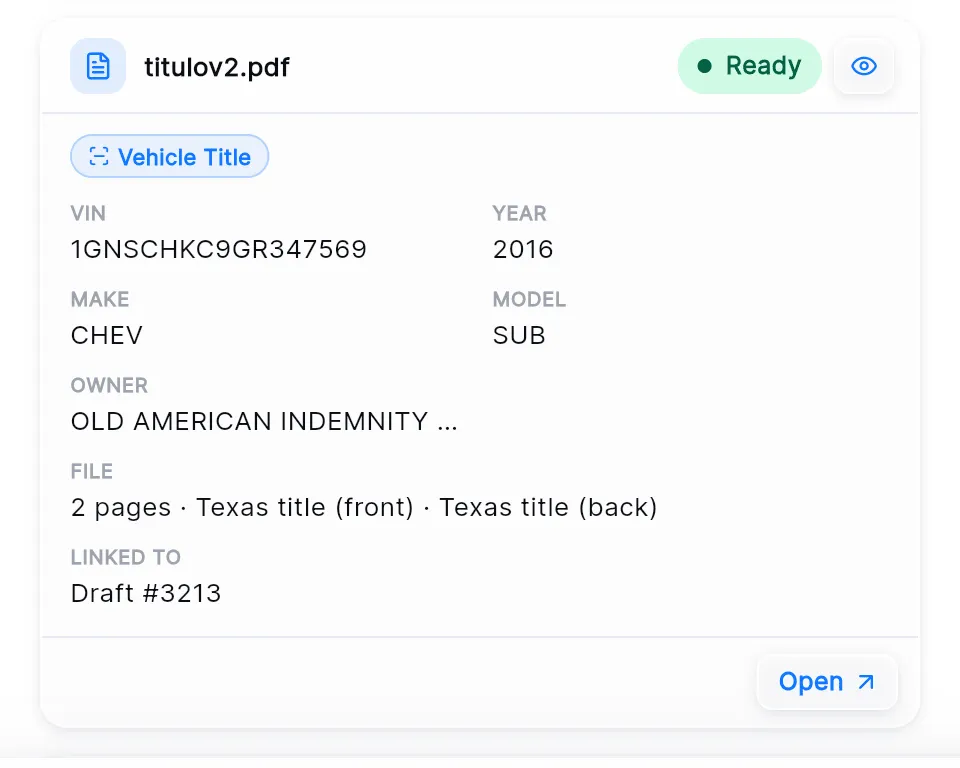
The eye icon (Preview) shows the file, and Open goes to the record it is linked to.
Read the cards in an answer
Section titled “Read the cards in an answer”Some answers come with a card instead of a paragraph. The card is live: its buttons act on your records, and Open shows the record itself.
Review checklist
Section titled “Review checklist”Ask what a transfer is missing and the answer is its review checklist, one row per check. The header names the transfer and counts what is missing, and the strip at the bottom adds it up (“2 missing · 14 need review · 21 ok”).
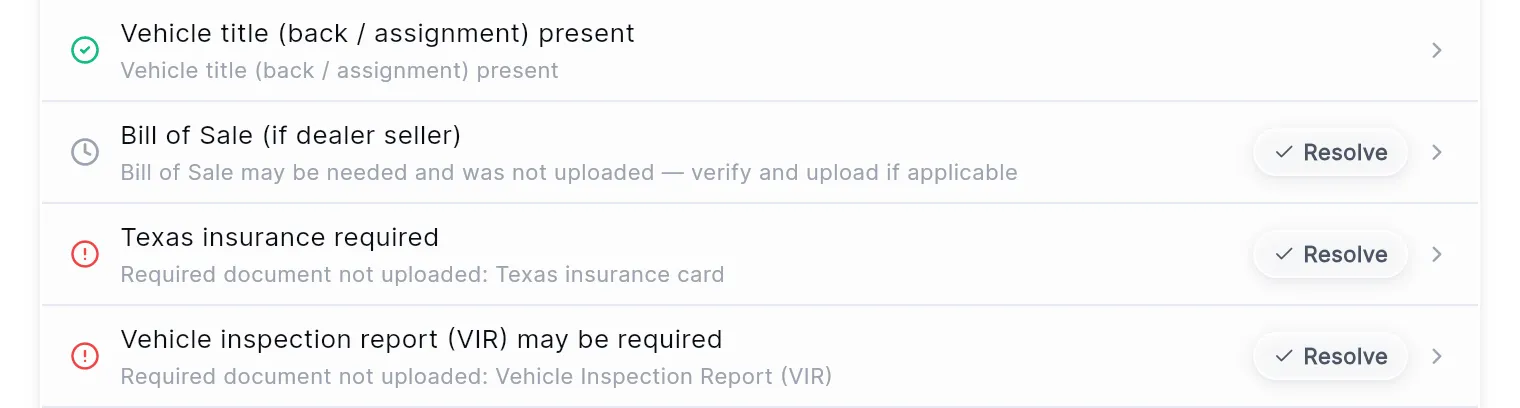
| On a row | What it means |
|---|---|
| Green check | The check passed. |
| Grey clock | Needs review: TitleAI couldn’t decide on its own. |
| Red mark | Missing. A document the transfer needs isn’t uploaded. |
| Resolve | Mark as resolved: you checked it yourself and it’s fine. |
| Chevron | The row is about a document. Click the row to open it. |
Fee estimate
Section titled “Fee estimate”Ask what a transfer will cost and the answer is a fee card: one row per fee, what each is based on, and the Estimated total due.
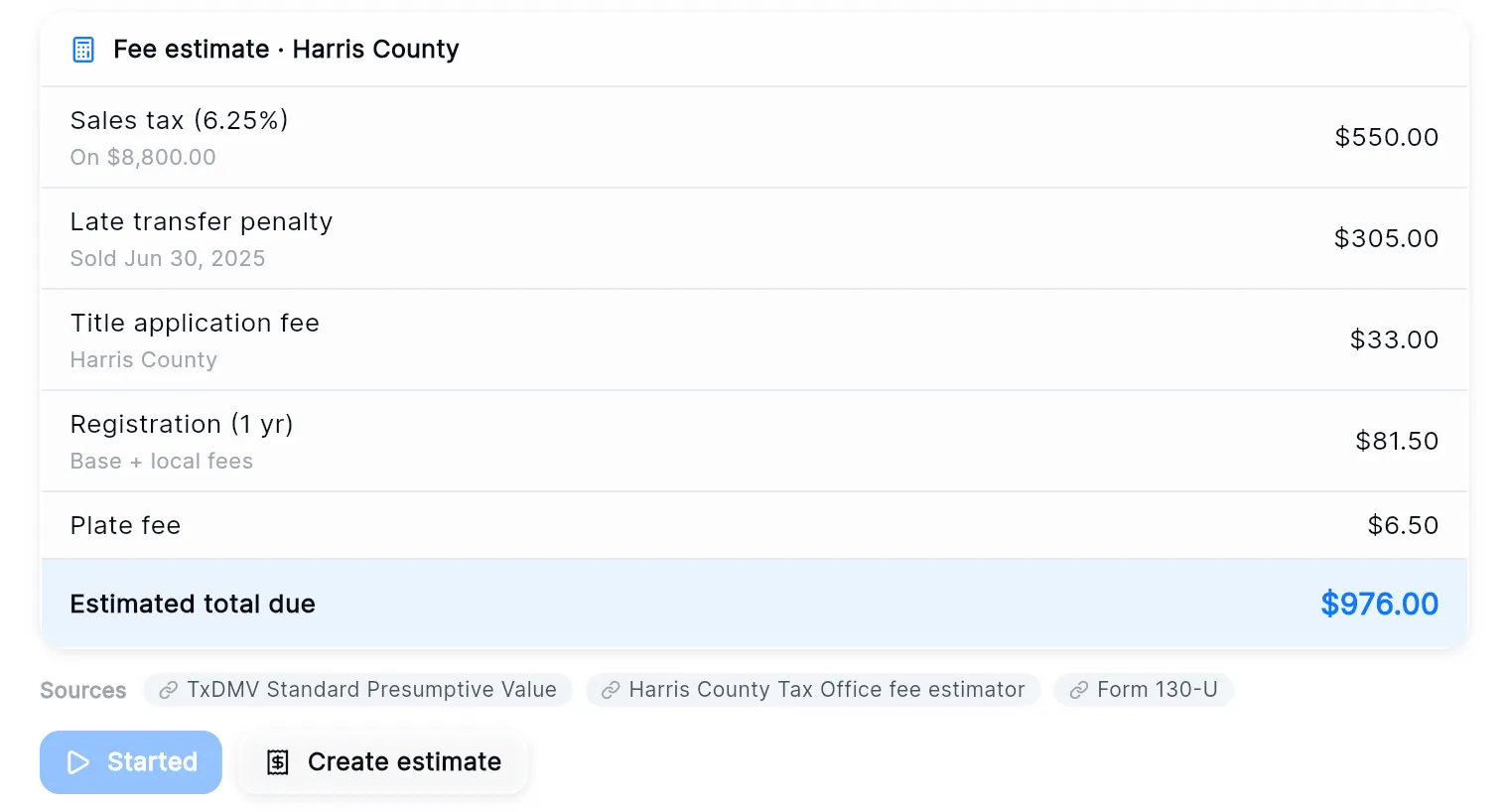
The fee card above came with a proposal, so the buttons under it are the proposal’s. On its own, a fee card has these:
- Pre-fill 130-U fills the transfer’s 130-U from these numbers and opens it beside the chat.
- Create estimate saves the numbers as an estimate. It greys out once the estimate exists.
- Attach to transfer (or Attach to Transfer #812 when the conversation is about one) saves the estimate and links it to that transfer.
The agent does one thing at a time. While it works, the other buttons in the conversation are off, and the one you pressed spins.
Records
Section titled “Records”Ask about one record and the answer shows its card: what it is, its status, and its key facts.
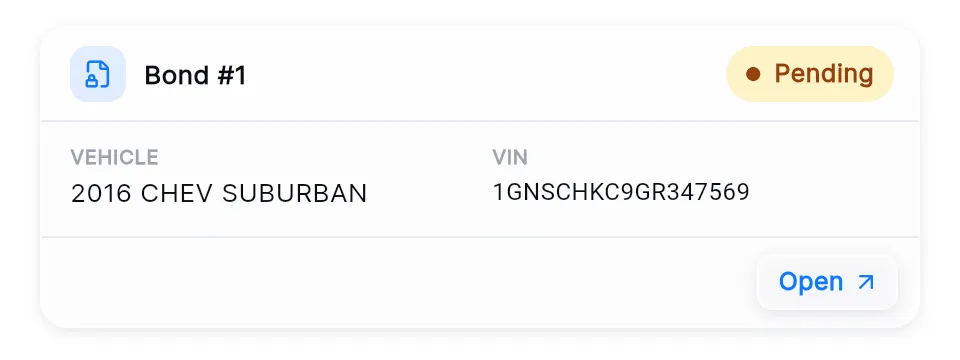
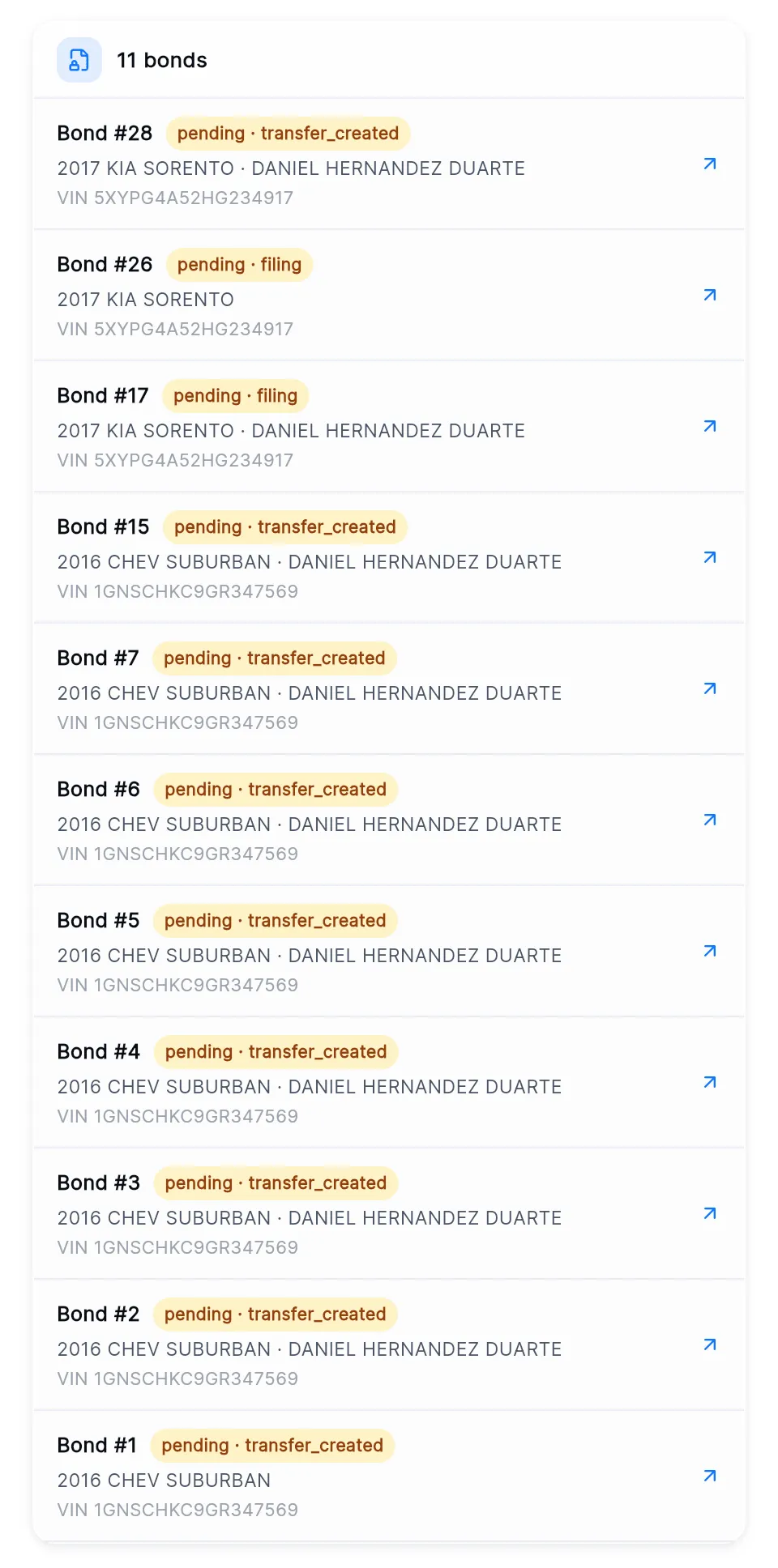
Ask about several (“show me the bonds”) and they come as a list. Each row carries its status, the vehicle, the client and the VIN. Click a row, or the arrow at its right, to open that record.
Sources and the thinking line
Section titled “Sources and the thinking line”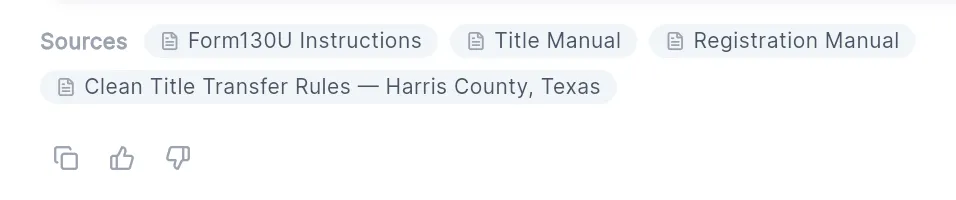
- Sources: what the answer is based on. A chip with a link icon opens the TxDMV page. A chip with a page icon is one of TitleAI’s own documents and doesn’t open.
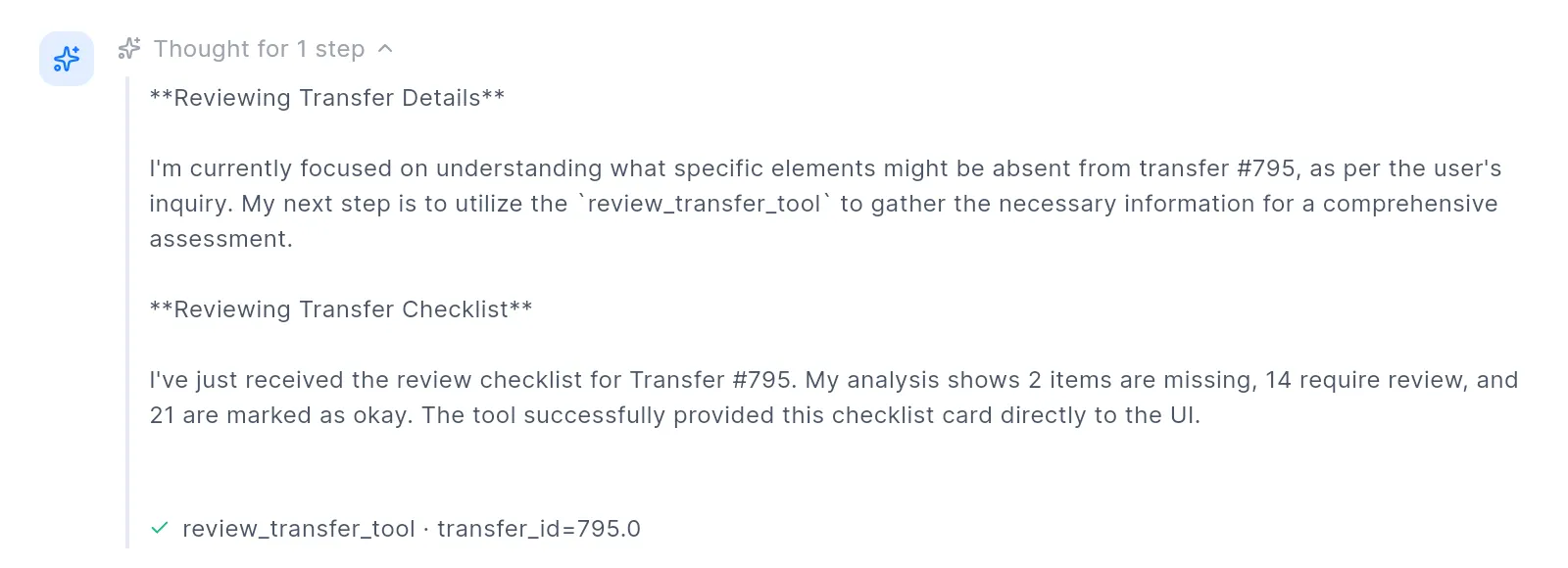
- Thinking: the grey line above each answer. While the agent works it says what it is doing. Afterwards it reads “Thought for 3 steps”; click it to see the steps.
Open a record next to the chat
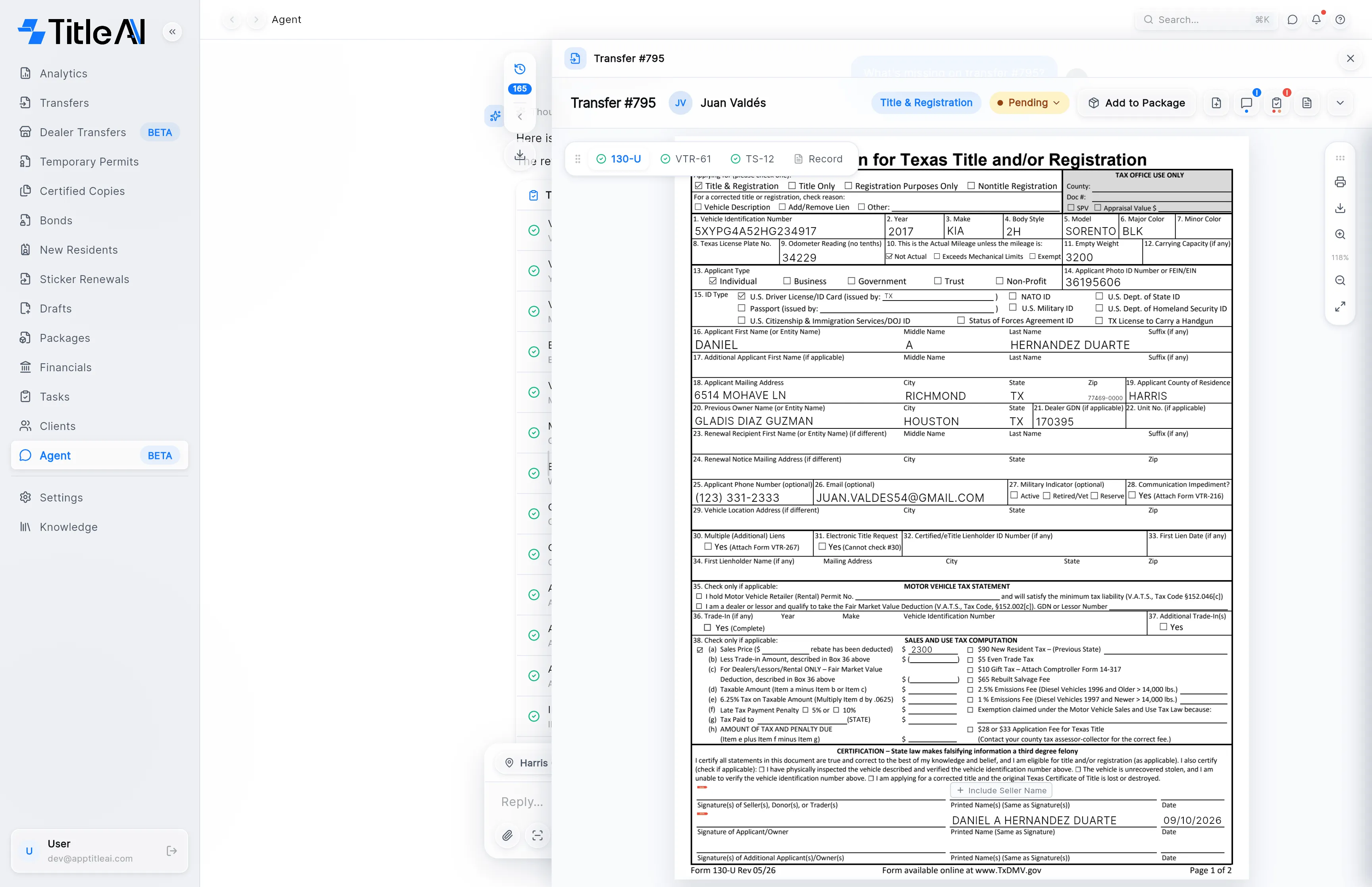
Section titled “Open a record next to the chat”Click Open on a card, or a blue link like Transfer #795 in an answer. The record opens on the right, the same screen you’d get from its own section, and the chat stays where it is.
| Control | What it does |
|---|---|
| The record’s name | The top of the panel says which record is open. |
| × | Close: back to the chat alone. |
| The divider | Drag the panel’s left edge to make it wider. |
| Everything below | The record’s own screen. It works exactly as it does in its section (see Transfers). |
On a narrow window the panel covers the chat instead of sharing the screen.
Find an old conversation
Section titled “Find an old conversation”-
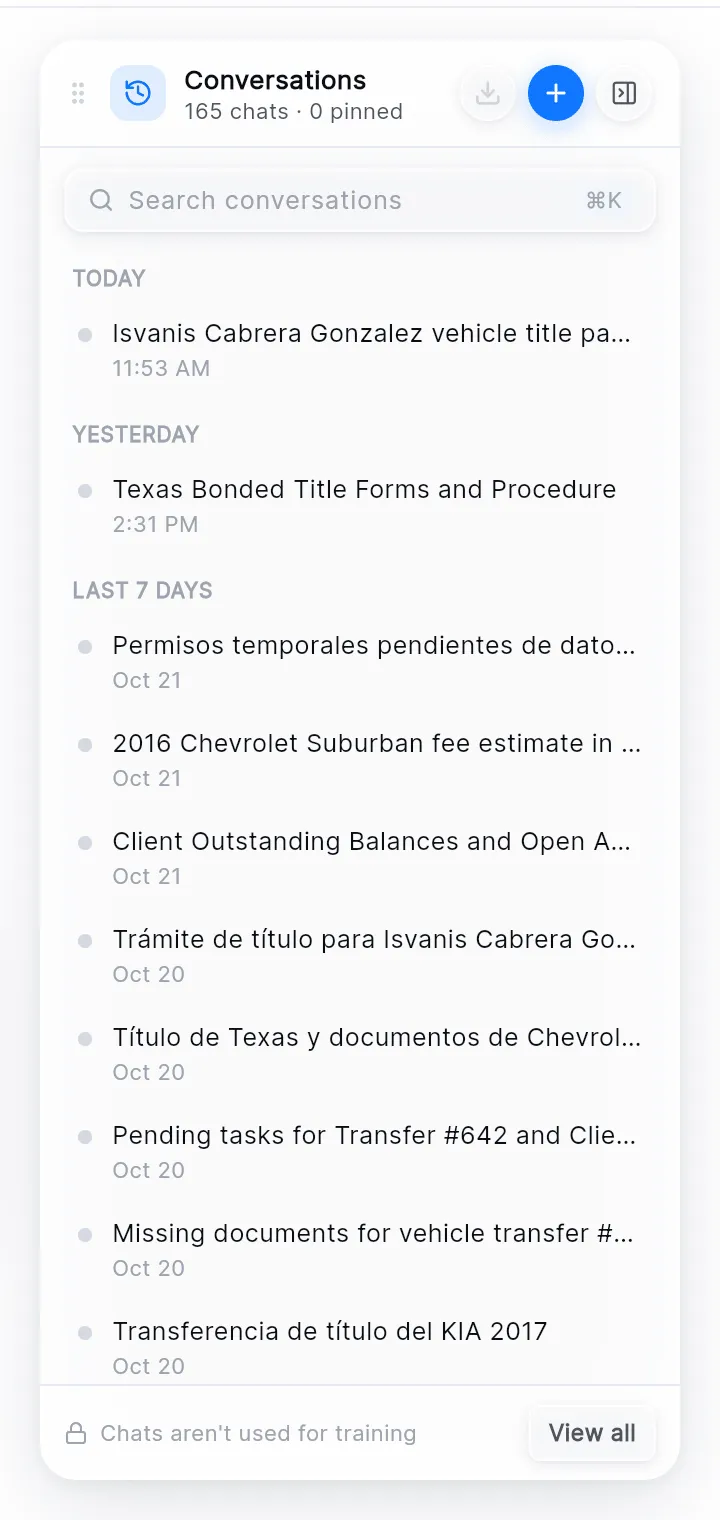
Click the history tab at the top right. It shows how many conversations you have.
-
Type in Search conversations, or scroll. Conversations are grouped Pinned, Today, Yesterday, Last 7 days and Earlier. A blue tag under a title (such as Transfer #831) is the record it’s about; click the tag to open that record.
-
Click a conversation to open it. Its cards come back as they were.
The + at the top of the panel (New chat) starts a new conversation, and the last button folds the panel back into its tab. Drag the panel by its header to move it out of the way.
Rename or pin a conversation
Section titled “Rename or pin a conversation”-
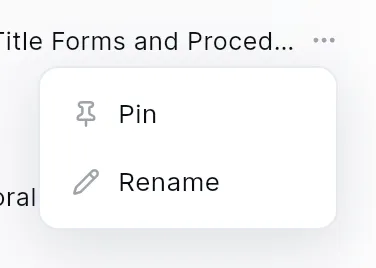
In the history panel, point at the conversation and click the ⋯ that appears.
-
Choose Pin to keep it at the top under Pinned, or Rename to give it your own title and press Save. TitleAI names each conversation on its own after the first answer.
Copy or download a conversation
Section titled “Copy or download a conversation”-
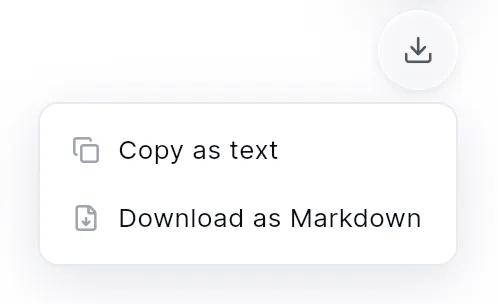
Open the conversation and click the download icon under the history tab (Download conversation).
-
Choose Copy as text to paste it somewhere else, or Download as Markdown to save it as a file.
Tell us how an answer went
Section titled “Tell us how an answer went”The icons under each answer:
| Icon | What it does |
|---|---|
| Copy | Copies the answer. |
| Thumbs up | Good answer. Click again to take it back. |
| Thumbs down | Bad answer. Opens What went wrong?, where you can add a note and Send, or Skip. The vote counts either way. |
| Regenerate | Writes the last answer again. Only on the last answer. |
Chats aren’t used for training.