
Review Checklist
The Review Checklist reads a trámite’s forms and the documents uploaded to it and lists what passed, what to look at, and what is wrong. It is on the screen of every trámite (transfers, temporary permits, certified copies, bonds, new residents, sticker renewals) and on the review step of each wizard.
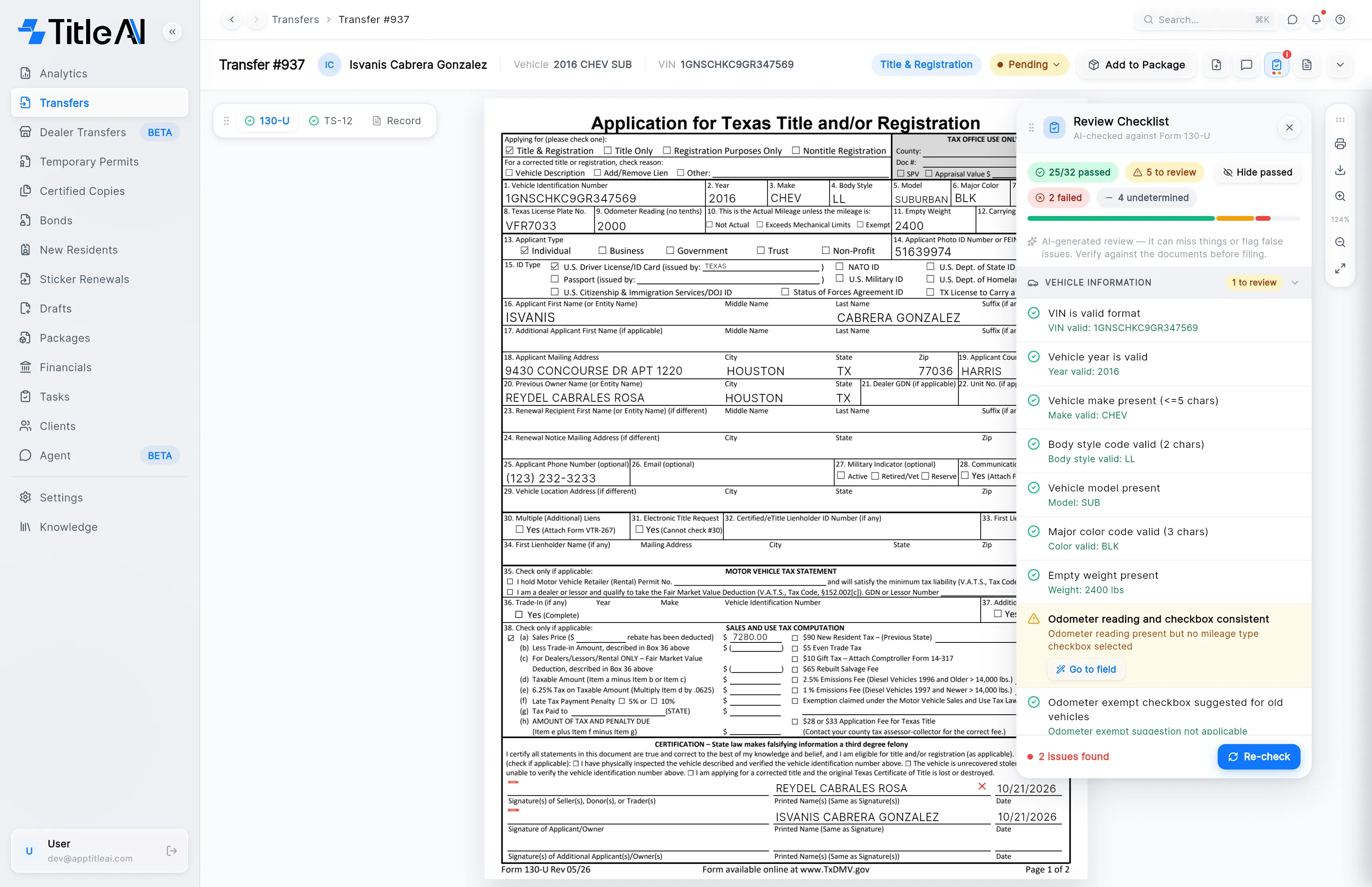
Open and close it
Section titled “Open and close it”On a trámite’s screen, click the clipboard icon in the header. In a wizard it opens on its own when you reach the review step.
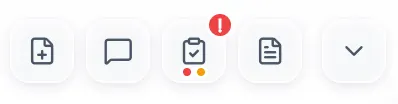
The clipboard tells you before you open it whether anything needs you:
| On the clipboard | What it means |
|---|---|
| Red ! | At least one check failed. |
| Amber ! | Nothing failed, but something is waiting for review. |
| Red dot underneath | There are failed checks. |
| Amber dot underneath | There are checks to review. Both dots show when there are both. |
| No mark | Nothing failed and nothing to review. |
The panel floats over the form. Drag it by its header to move it out of the way. Close it with the ×, the Esc key, or the clipboard icon again.
What the panel shows
Section titled “What the panel shows”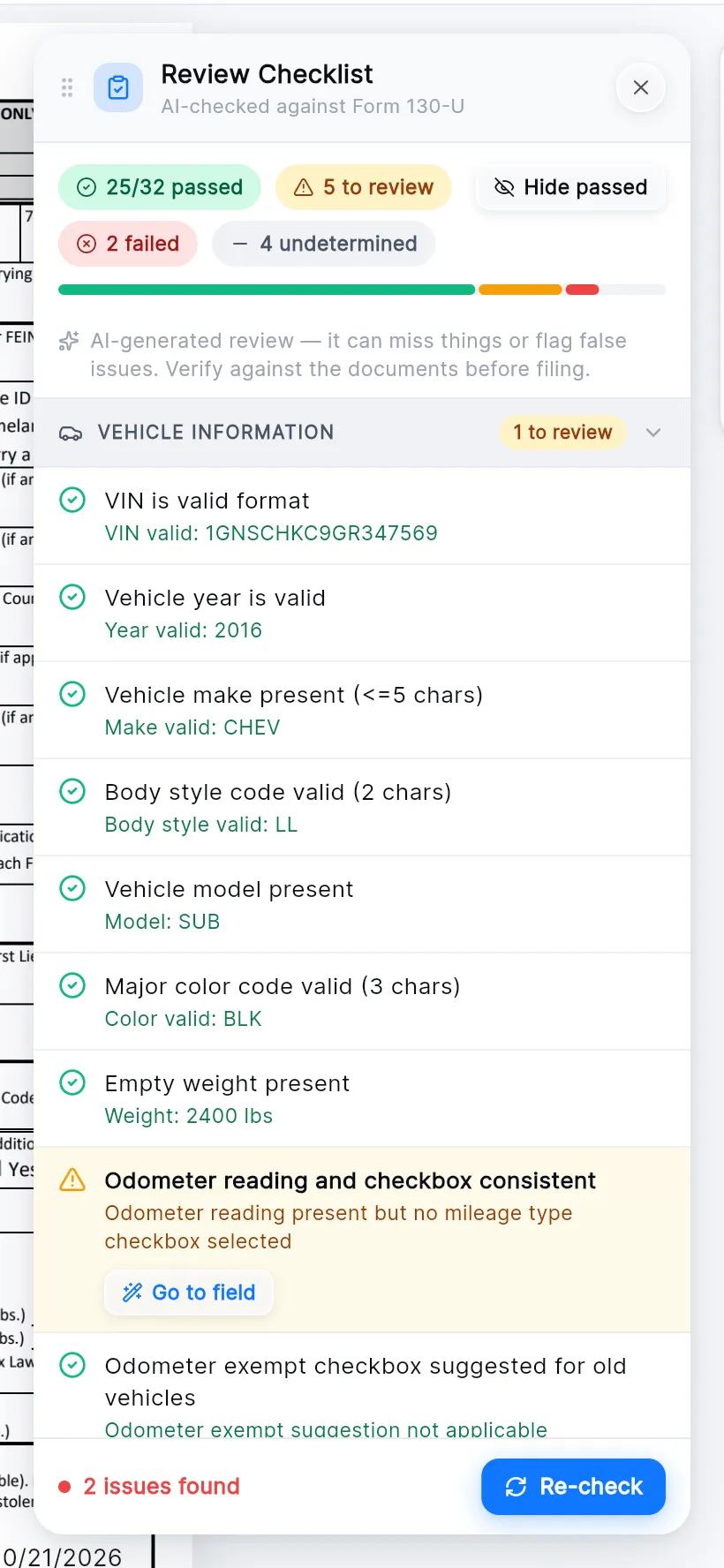
| On screen | What it means |
|---|---|
| AI-checked against Form … | The form the checks ran on. |
| passed (green) | Checks that came out right, out of all the checks that could be decided. |
| to review (amber) | Something looks off but may be fine. Read the line under it and decide. |
| failed (red) | Something is wrong or missing. Fix it before filing. |
| undetermined (grey) | The check couldn’t run, and the line under it says why (for example “No uploaded inspection to compare”). It doesn’t count as passed. |
| The bar | The same counts as a bar: green, amber and red. |
| Groups | The checks are grouped by what they look at: VEHICLE INFORMATION, APPLICANT INFORMATION, PREVIOUS OWNER, CROSS-CHECKS, DOCUMENTS REQUIRED and so on. A pill on the group says how many of its checks failed or need review. Click a group’s heading to fold it. |
| Line at the bottom | Where the run stands: “Checking…”, “2 issues found”, “1 warning”, “All checks passed”. |
Each check has a mark on its left: a green check (passed), an amber triangle (to review), a red cross (failed) or a grey dash (undetermined).
Work through what failed
Section titled “Work through what failed”-
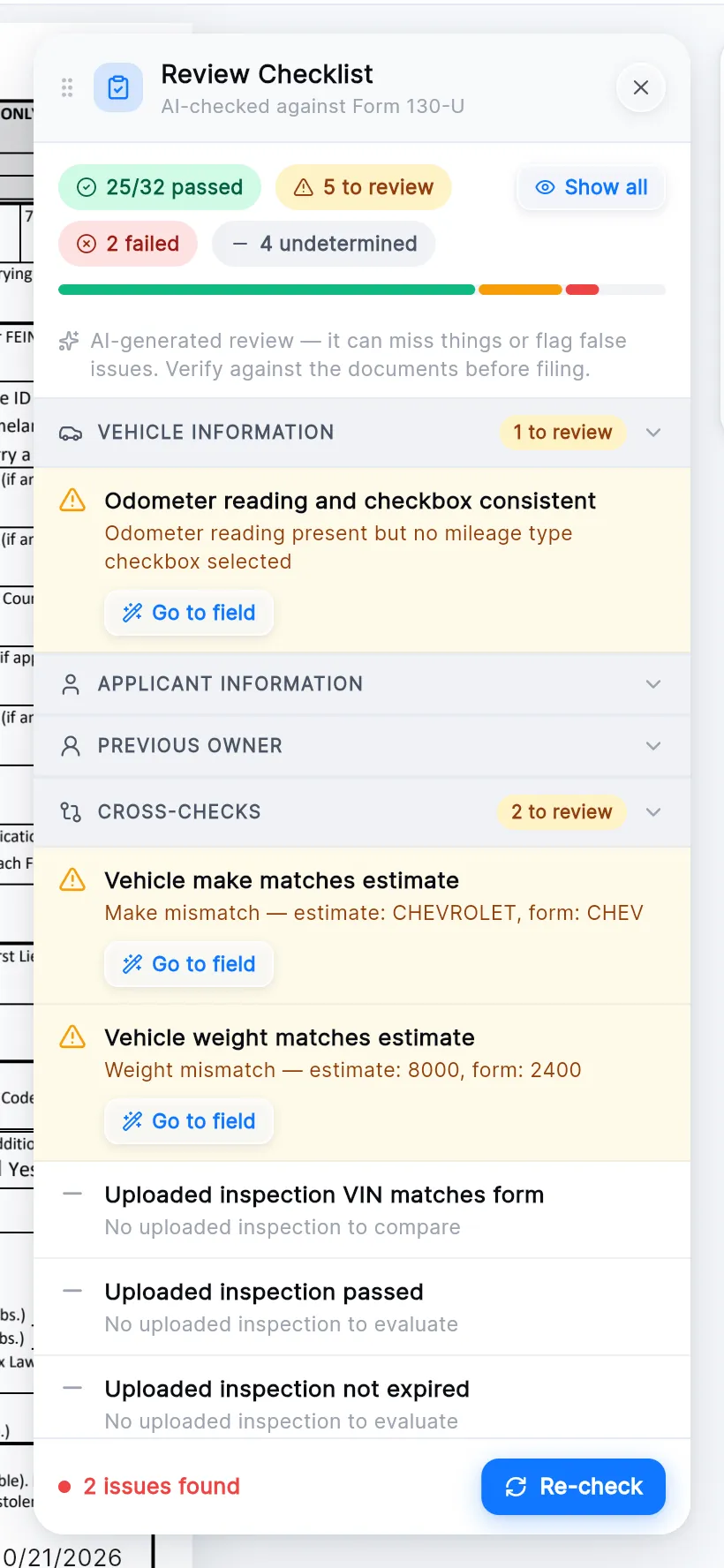
Click Hide passed at the top of the panel. Only the checks that failed, need review or couldn’t run are left. The button now reads Show all.
-
Read the line under a check. It says what was compared and what was found, for example “Make mismatch — estimate: CHEVROLET, form: CHEV”.
-
Click Go to field. The form that holds the field opens on it, so you can correct it there.
-
Press Re-check at the bottom to run the checks again. While it runs the old results stay on screen, dimmed, and each one updates as its new result comes in.
On a trámite’s screen you often don’t need Re-check: while the panel is open, changing a field re-checks its group, and uploading a document re-checks DOCUMENTS REQUIRED.
Tick a check yourself
Section titled “Tick a check yourself”When you have verified something the checklist couldn’t decide, click the check. It is ticked and reads “Manually verified by user”. Click it again to untick it.