
Analytics
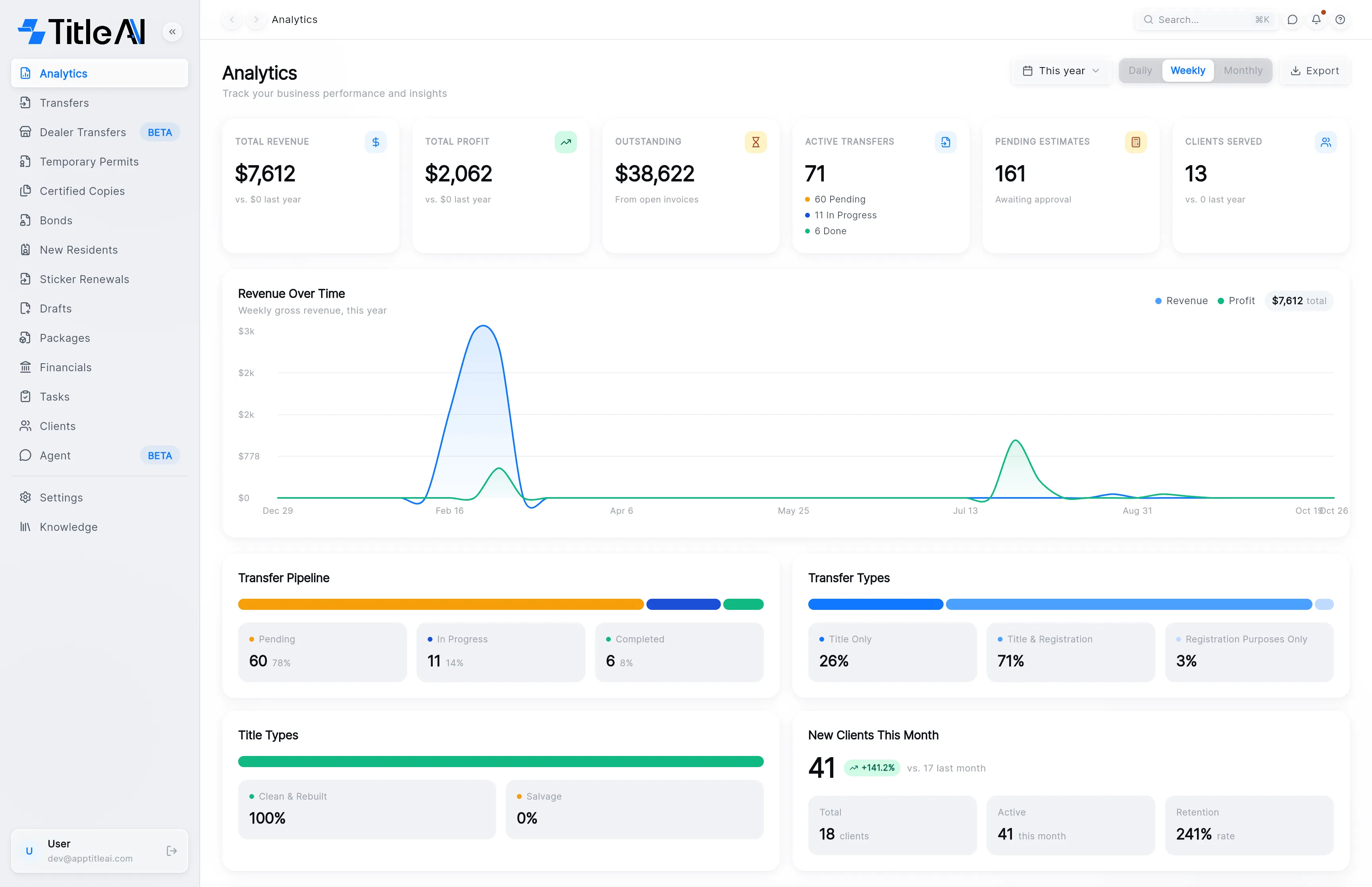
Analytics is the first screen after you sign in. It shows how the office is doing: the money in and still owed, the transfers in the works, and which services sell. Most cards open the records behind their number when you click them.
The controls
Section titled “The controls”
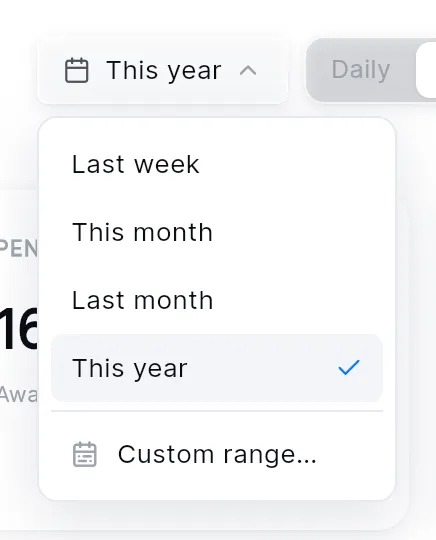
- Period button: the calendar button with the period’s name. It sets the dates for every card that follows a period (see the table below). The screen remembers your choice next time.
- Daily / Weekly / Monthly: how the Revenue Over Time chart groups its points. It changes only the chart; the cards stay the same.
- Export: downloads the report for the period as a PDF.
The cards reload together whenever you change the period, and on their own when something new comes in. While they reload, they dim and a thin line runs under the heading.
What each number means
Section titled “What each number means”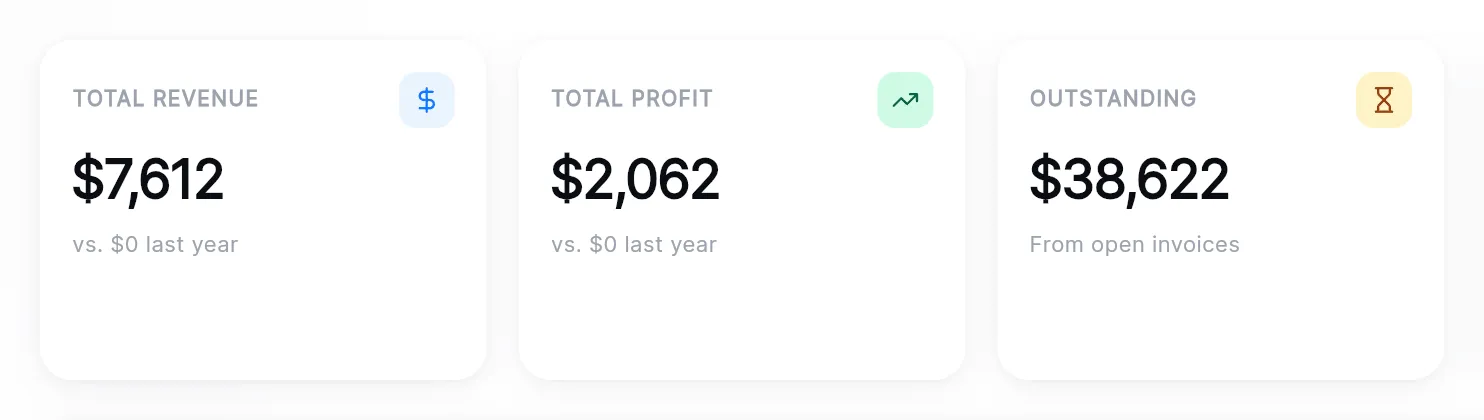
| On screen | What it counts | Period |
|---|---|---|
| Total revenue | The money received on paid invoices, refunds taken off. It includes the taxes and state fees you collected, not just your own charges. | Invoices created in the period |
| Total profit | The part of each payment that is your own service charges, without the taxes and state fees you pass on. Refunds are taken off. | Payments received in the period |
| Outstanding | What customers still owe on invoices that are open or overdue. | Invoices created in the period |
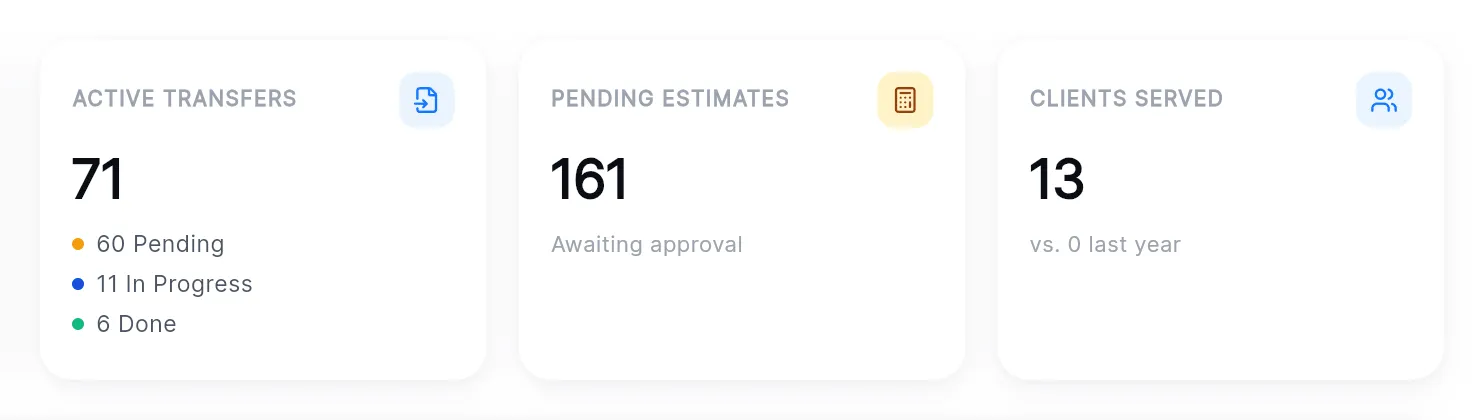
| Active transfers | Transfers that are Pending or In Progress. The three lines under the number split them, and Done counts the completed ones. | All transfers, any date |
| Pending estimates | Estimates still waiting for the customer to approve them. | All estimates, any date |
| Clients served | How many different clients had a transfer opened. | Transfers created in the period |
| vs. … last year | The same number for the stretch of days just before the period, as long as the period. The words follow the period: “last month” for This month, “last year” for This year. | |
| Green or red pill | How much the number went up or down against that earlier stretch. There is no pill when the earlier number was zero. |
What the cards below mean
Section titled “What the cards below mean”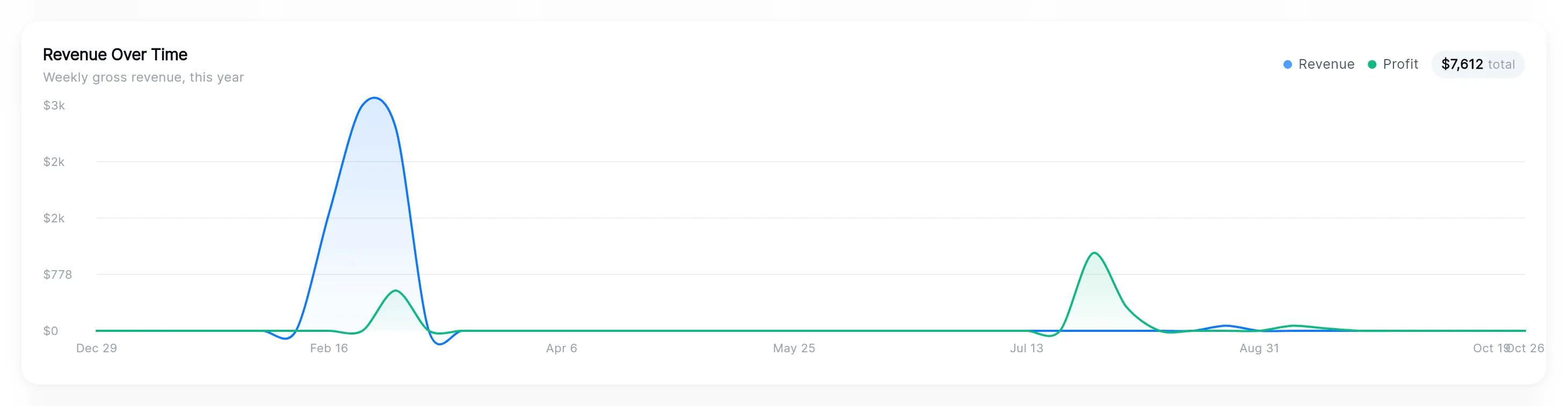
| On screen | What it means |
|---|---|
| Revenue Over Time | Revenue (blue) and profit (green) for the period, one point per day, week or month. The line under the title says which. Point at the line to read the values. |
| Total pill | The revenue for the whole period, the same as Total revenue. |
| Transfer Pipeline | Every transfer by status: Pending, In Progress, Completed, and Rejected when there are any. The bar shows the split, each tile the count and its share. Any date. |
| Transfer Types | The share of transfers per process: Title Only, Title & Registration, Registration Purposes Only. Any date. |
| Title Types | The share of invoices by title: Clean & Rebuilt or Salvage. Any date. |
| New Clients This Month | The big number is the clients added in the selected period. The “vs. …” line beside it is the same count for the stretch just before it. |
| Top Services | Your services ranked by what they have brought in, with how many you sold. Any date. |
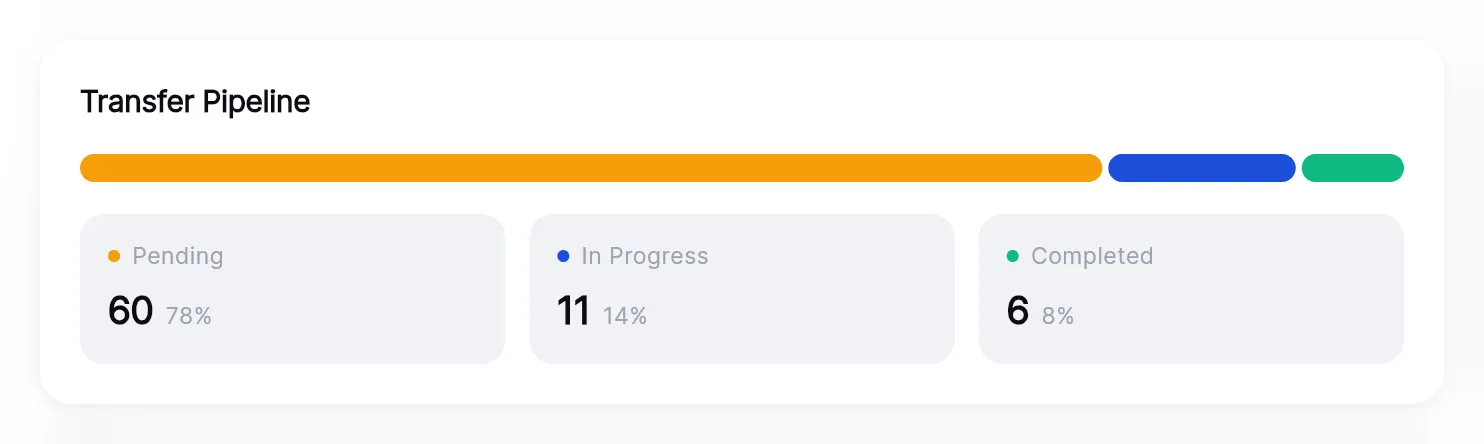
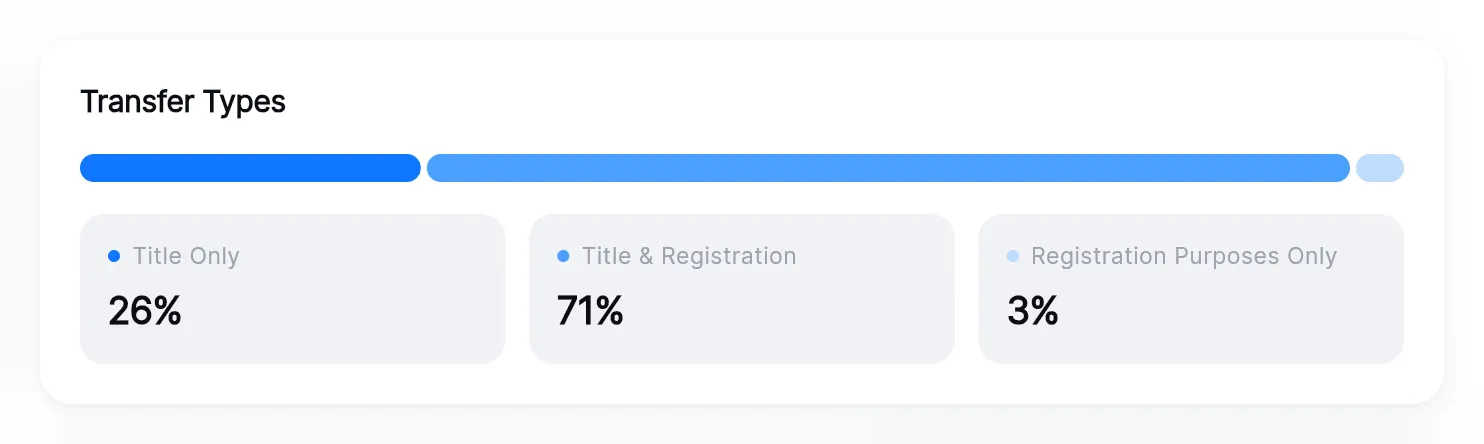
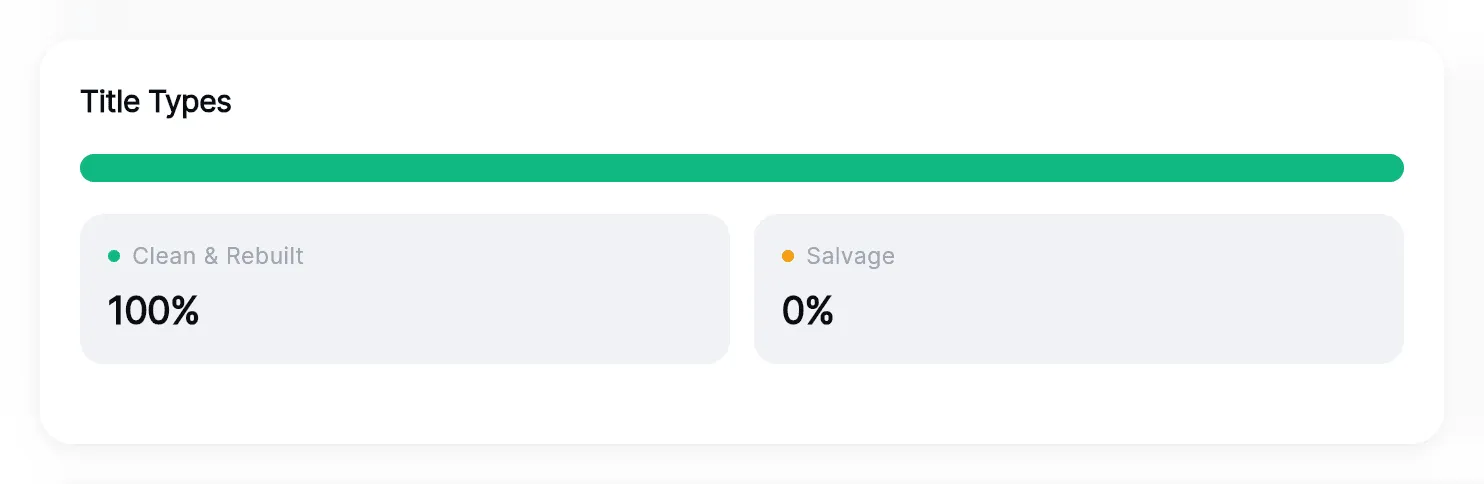
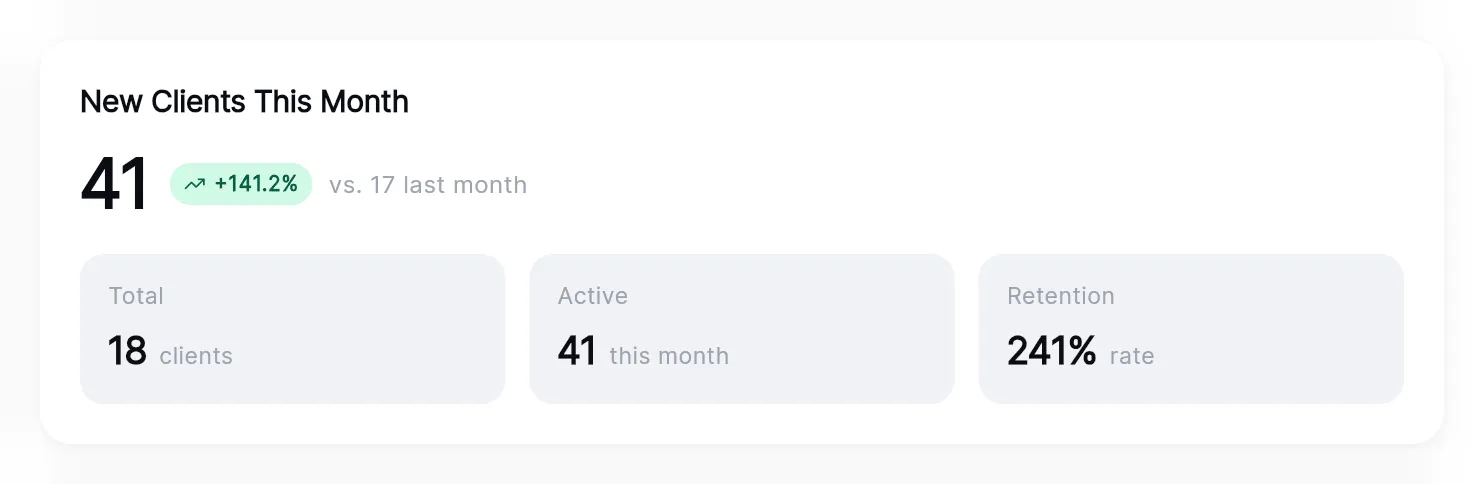
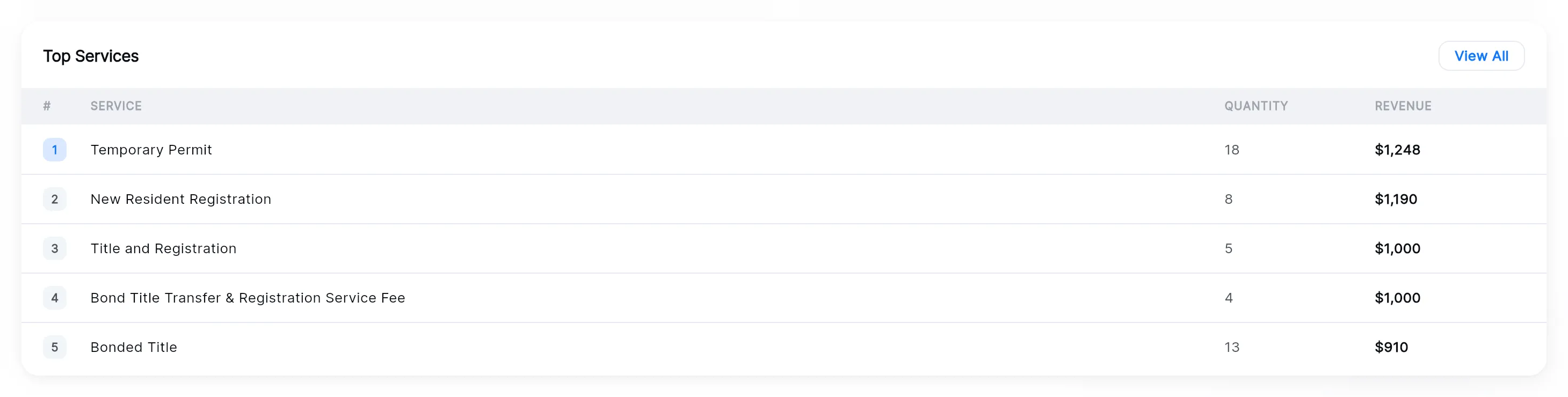
Top Services shows five rows. View All shows up to 50, scrolling inside the card, and Show less goes back to five.
Look at another period
Section titled “Look at another period”-
Click the period button at the top right.
-
Pick Last week, This month, Last month or This year. Every card that follows a period reloads.
-
For other dates, pick Custom range… and choose the first and last day. The button then shows the dates you picked.
Export the report
Section titled “Export the report”Click Export. TitleAI downloads AnalyticsReport.pdf for the period on the
button: a report of your office’s analytics for those dates, ready to save or
print.
Open the records behind a number
Section titled “Open the records behind a number”Click a card to see the records it counts:
| Click | Opens |
|---|---|
| Total revenue or Total profit | Financials, the paid invoices for the period. |
| Outstanding | Financials, the open invoices for the period. |
| Active transfers | Transfers, with the In Progress chip on. |
| Pending estimates | The estimates in Financials that are pending. |
| Clients served | Clients, the ones served in the period. |
| A tile in Transfer Pipeline | Transfers, with that status chip on. |
The back arrow at the top left brings you back to Analytics.