
Drafts
Drafts in the sidebar holds every trámite that was started and left before the last step: a transfer someone set up but never submitted, a permit waiting on its documents. Nothing is lost when you close a wizard halfway; it waits here, at the step where you left it.
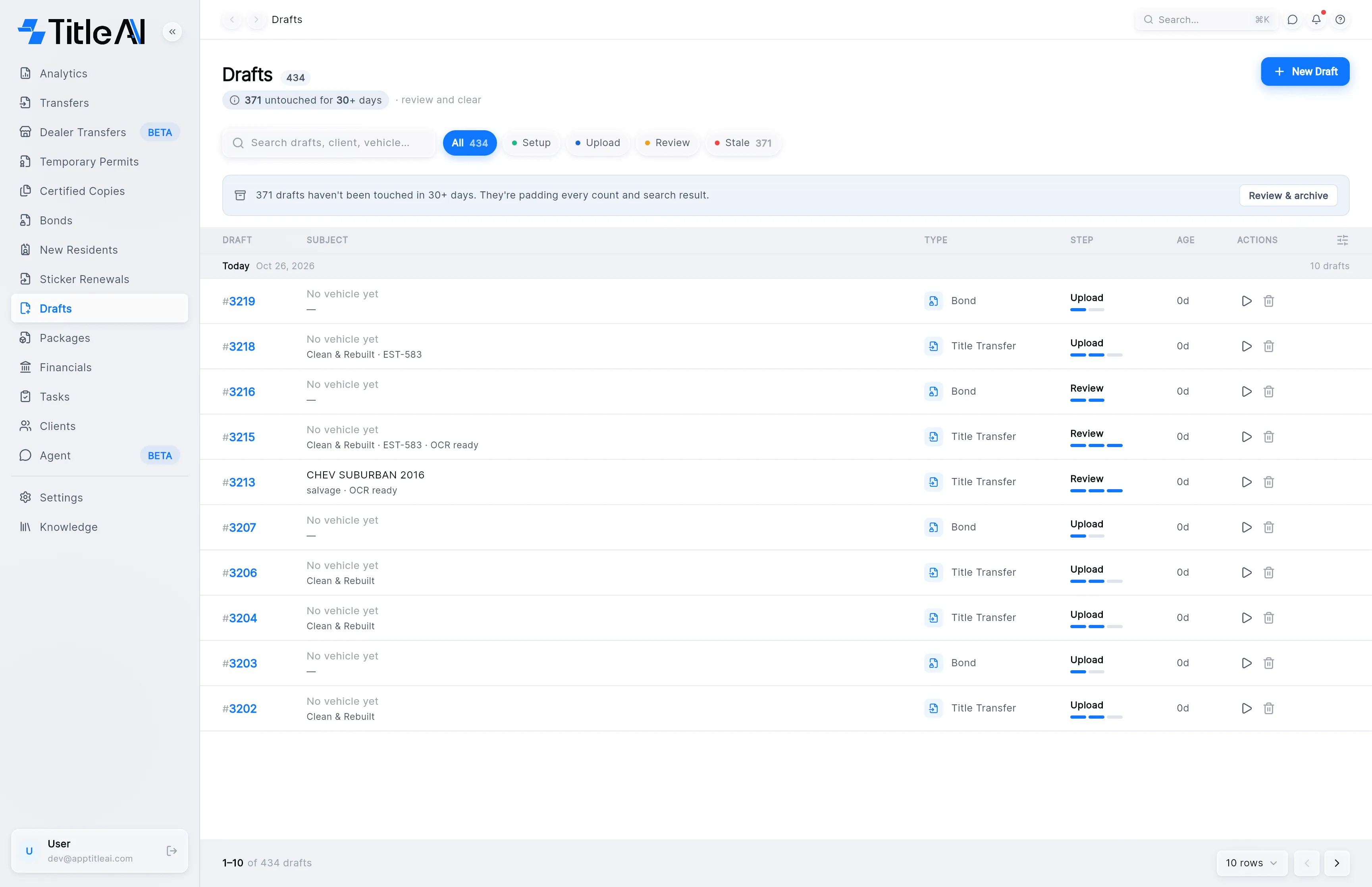
The drafts list
Section titled “The drafts list”
- Search box: matches the draft number, the client and the vehicle.
- Step chips (Setup, Upload, Review): show only the drafts stopped at that step. They narrow the page you are on.
- Stale: every draft nobody has touched in 30 days or more, across all pages. Its count is next to it.
- Review & archive: on the banner that appears when stale drafts exist. It turns on the Stale chip and the tick boxes, so you can clear them in one go (see below).
- Column settings: the icon at the right end of the table header.
What the columns mean
Section titled “What the columns mean”| On screen | What it means |
|---|---|
| Draft | The draft’s number. |
| Subject | The vehicle, or “No vehicle yet”. Underneath, how far it got: the title type, the estimate (EST-…), “Documents uploaded”, “OCR ready” (the documents have been read). |
| Type | Which wizard it came from: Title Transfer, Dealer Transfer, Temporary Permit, Certified Copy, New Resident Registration, Sticker Renewal or Bond. |
| Step | The step it stopped at, with a bar showing how many steps are done. Transfers, dealer transfers and sticker renewals go Setup, Upload, Review; the rest go Upload, Review. |
| Age | Days since the draft was last changed. It turns red at 30 days. |
| Play icon | Resume: open the draft. |
| Trash icon | Discard: throw the draft away. |
Pick up a draft where you left it
Section titled “Pick up a draft where you left it”-
Find the draft. The search box takes the client’s name or the vehicle; the step chips narrow it down.
-
Click the row, or the play icon in Actions. The wizard opens on the step the draft was at, with everything already entered and uploaded.
-
Carry on as you would with a new one. The sidebar moves to that trámite’s section (Transfers, Bonds…) while you work.
If you close the wizard again before submitting, the draft stays here with what you added.
Start a new draft
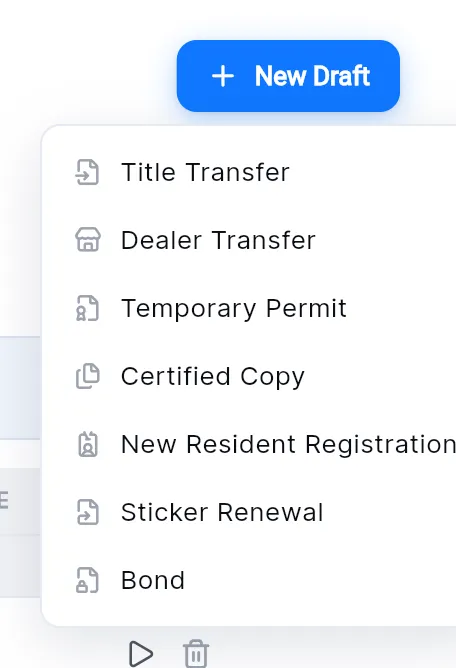
Section titled “Start a new draft”Press New Draft at the top right and pick the trámite. It opens that trámite’s wizard, the same as its own New button would.
Clear out old drafts
Section titled “Clear out old drafts”Abandoned drafts pile up and pad every count and search. The banner tells you how many have gone 30 days without a change.
-
Press Review & archive on the banner. The list switches to Stale and a tick box appears on each row.
-
Tick the drafts you don’t need. The tick box in the header ticks the whole page.

-
Press Discard with the count (“Discard 1 draft”) and confirm. Cancel leaves the list as it was.
To throw away a single draft, press its trash icon and confirm Discard. A discarded draft is marked completed and disappears from this list.